For the system administrator
In short
- Only the system administrator has "Profile" → "Administration".
- There: the registration mode, the requests, adding and blocking users, the allowed pairs.
- The administrator does not see others' strategies, amounts or history in the app.
The system administrator is a user who also manages who has access. The administrator has the "Administration" section: "Profile" → "Administration". Other users do not have this section.
"Profile" → "Administration" opens a menu of two pages. "User management" — the registration mode, the requests, and for users — name, Telegram ID, status, how many strategies the person has and whether their key vault is open; other users' strategies, amounts and history are not there. "Trading pairs" — "What may be traded": which pairs new strategies may trade on each market. To go back from a page to the menu — "← Administration".
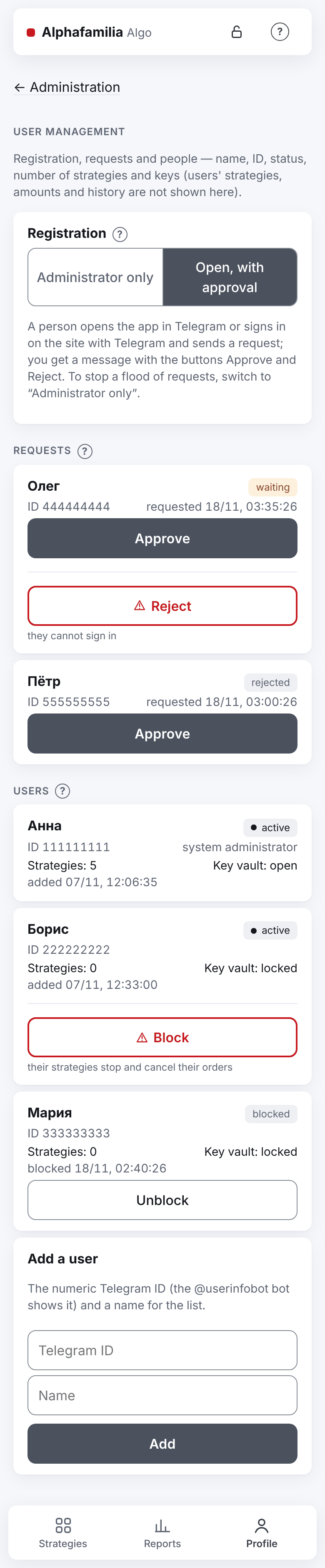
Registration mode
At the top of the "User management" page is the "Registration" switch (with a "?" sign):
- "Administrator only" (as it always was, and as it is right after the update) — you add new people by Telegram ID. Requests are not taken.
- "Open, with approval" — a person opens the app in Telegram (or signs in in a browser with "Sign in") and sees "Request sent", and you get the message "🔴 Request to register" with the buttons "✅ Approve" and "❌ Reject".
Before "Open, with approval" is switched on, the app asks: "Open the registration? Anyone who finds the bot in Telegram can apply — the requests come to you for approval. An approved user adds keys and strategies alone." If you say no, the switch goes back to "Administrator only". Going back to "Administrator only" asks nothing: it opens nothing.
While a request waits or was rejected, nothing is open to the person: they cannot sign in.
If there are too many requests, switch to "Administrator only": new requests are no longer taken. Those already waiting stay in the list — you can still decide them.
Requests
Requests are in the "Requests" block (with a "?" sign about the "Block · Approve · Reject" buttons): the name from Telegram, the Telegram ID, when it was sent, the status "waiting" or "rejected". The "Reject" button has a red frame.
- Click "Approve" (or "Reject") on a request — or the button in the Telegram message: it opens this section at that request.
- Confirm the decision.
- After "Approve" the person becomes a user and gets "ℹ️ Access granted" in Telegram. The app answers "Access granted. The person gets a message in Telegram.".
- After "Reject" the person cannot sign in; the request stays in the list as "rejected" — you can approve it later. They cannot send another request and are not told about the refusal.
If you add a person who has a request with "Add a user", the request counts as approved. A possible error: "No such request — it may be decided already.".
A blocked user cannot send a request: nothing changes for them.
Add a user
- Ask the person to find out their Telegram ID from the bot @userinfobot.
- Open "Profile" → "Administration" → "User management".
- In the "Add a user" block, enter the "Telegram ID" (a number) and a "Name" for the list.
- Click "Add".
- Wait for the answer "Added. They can sign in now.".
- Tell the person they can sign in, and give them the link to this help.
After that the person adds their own connections and strategies. Possible errors: "A Telegram ID is a number.", "This user already exists.".
Block a user
- Find the person in the list.
- Click "Block" (a button with a red frame) and confirm.
What happens:
- their strategies stop and cancel their orders; the assets on the exchange are not sold;
- then their vault is locked;
- they can no longer sign in; open sessions are closed at once;
- the keys stay in the encrypted vault, the history in the database; nothing is deleted.
If their vault is locked at that moment, the orders cannot be cancelled. The app warns you: "Blocked. Their key vault was locked — the strategies' orders stay on the exchange.".
Users are not deleted, only blocked. The system administrator cannot be blocked.
Unblock a user
- Find the person in the list (status "blocked").
- Click "Unblock" and confirm.
Everything goes back to how it was: the person signs in, opens their vault and starts their strategies themselves.
What may be traded
The page "Profile" → "Administration" → "Trading pairs". For each market — "Binance spot", "Binance USD-M futures", "Binance COIN-M futures" (by default — BTC and USD, that is BTCUSD_PERP), "BingX spot", "BingX USDT-M futures", "Bybit spot", "Bybit USDT futures", "Coinbase spot", "T-Invest" — two lists: "Assets (what we trade)" (BTC, ETH; on T-Invest the tickers SBER, GAZP) and "Profit currencies" (USDT, USDC; Coinbase — EUR, USDC; on T-Invest RUB). The section's title has a "?" sign.
Each ticker of a list is a chip with a cross "×": tap "×" to take the ticker away. To add one, type the ticker in the field at the end of the list ("A ticker and Enter") and press Enter, a comma or a space. Several can be pasted at once, separated by commas, spaces or ";". Small letters become capitals by themselves. Then press "Save" at the market. While the changes are not saved, the market says "The changes are not saved.".
- When users make a strategy, they choose the pair only from these lists and only among the pairs the exchange trades now. With the assets BTC, ETH and the currencies USDT, USDC on spot, the form offers BTCUSDT, BTCUSDC, ETHUSDT, ETHUSDC — if Binance has them.
- An empty list (of assets or currencies): no strategy can be created on that market. If you take away the last ticker, the app warns at once: "An empty list closes this market for new strategies once you save it." After saving, the market says "The list is empty — no strategy can be created on this market.", and the new strategy form tells the user the same.
- The lists concern new strategies only. Running strategies go on trading their pair, even when it was taken off the list.
- A ticker is capital latin letters and digits, 1 to 20 characters; a list has at most 200 tickers. A wrong ticker stays in the field with what is wrong next to it: "Wrong ticker: … (latin letters and digits).", "… is in the list already." or "The list is too long (over 200).". Until it is fixed, the list is not saved. The server checks the lists by the same rules.
- The update to 2.0.21 filled the lists with the pairs of your strategies (archived ones aside).
How the system works
The system administrator's "Profile" has one more link beside "Help": "How the system works" — the technical description: how the service is built and protected, the developer's decisions, the server's installation and the runbook. Other users do not see the link, and the server gives them no page of the description — not even by its direct address.
Press "How the system works" — the description opens in the browser (in Telegram, in Telegram's own browser). The link is good once and for a minute; the browser gets access for as long as you are signed in to the app. After "Sign out" in the app the description closes; open it again from "Profile".
Server settings
The service's settings are in the file /etc/vnext2/settings.toml on the server. Usually there is no need to change them: the defaults are meant for everyday work, and updates do not touch the file. Below are the lines the system administrator may change; the rest (the database, the key file, the interface, the connections) is set when the server is installed — see the technical description.
How to change a setting:
- In the file, in the
[service]section (or[diagnostics], whichever the setting is in), write or correct the line. A wrong value or a typo in the name — the service will not start and will say which line is wrong. - Run
systemctl restart vnext2: the settings are read only when the service starts. - Open the vault and start the strategies, as after a restart (Server restart and update).
The [service] section (the first value is the default):
| Setting | Values | What it does |
|---|---|---|
step_seconds |
a number from 1 to 60 (3) | How often a strategy takes a step, in seconds |
market_prices |
"compare", "stream" |
Where Binance strategies take the price from. compare: the REST price, as before, while the stream's price is only compared with it (a difference over 0.1 % — a line in the server's log). stream: the stream's fresh price (not older than 5 seconds), otherwise REST |
fills_from |
"stream", "rest" |
Where the strategies take order fills from. stream: from the account's event stream, reconciled with the exchange's history from time to time. rest: only from the exchange's history, as in 2.1.2 — for a trouble with the stream; several times more requests to the exchange. rest turns the stream facts of all exchanges (Binance, BingX, Bybit) off, whatever their own settings say |
trust_exchange_count |
"mainnet", "all", "off" |
Whether to believe the count of used requests that Binance itself reports. mainnet: only on the live address — on the test network the count shows 120–160 % of the limit at a light load and would stop reads for nothing; all: everywhere; off: nowhere, only the server's own count. The exchange's "too often" answers and an address block are taken into account whatever the value |
bingx_fills_from |
"compare", "stream" |
BingX futures. compare: trades are counted by the exchange's history, and the stream's trades are only compared with it — differences are written to the server's log. stream: a trade from the stream is a fact at once (the TP is placed sooner), the history is read for the reconciliation every 5 minutes and when there is a reason. Switch on after a week without differences. BingX spot does not use the stream |
bingx_market_prices |
"compare", "stream" |
Where BingX strategies (spot and futures) take the best price and the futures mark price from. compare: the REST price, as before, while the price from BingX's open market stream is only compared with it and counted in the metrics. stream: the stream's fresh price (not older than 5 seconds), otherwise REST. Switch after a week in compare, by the report of scripts/stream_report.py |
bybit_futures_fills_from, bybit_spot_fills_from |
"compare", "stream" |
The same for Bybit futures and spot, each market separately. For spot, stream is switched on only after a live check of the fee in MNT |
bybit_stream_samples |
a number from 0 to 200 (0) | How many first lines of each kind of the Bybit stream to write to the log for a check. Switched on only at the developer's request |
bybit_market_prices |
"compare", "stream" |
Where Bybit strategies take the price from (sprint 40). compare: the REST price, as before, while the price from Bybit's public market stream is only compared with it and counted in the metrics. stream: the stream's fresh price (not older than 5 seconds), otherwise REST. The demo account takes the same prices as the live one. Switch after a week of comparing — by the scripts/stream_report.py report |
The [diagnostics] section (off by default):
| Setting | Values | What it does |
|---|---|---|
bingx_stream_log |
false, true |
Write the first events of each kind from the BingX stream, with their fields, to the file bingx-stream-raw.jsonl (in the service's state folder). Switched on only at the developer's request. The file holds no keys, stream key (listenKey) or signatures |
bingx_stream_log_events |
a number from 1 to 1000 (20) | How many events of each kind to write |
bingx_stream_log_kb |
a number from 1 to 10240 (512) | The largest size of the file in kilobytes: after that nothing more is written |
What the strategies do in each stream mode is described for Binance in Emergencies and faults, for BingX in BingX, for Bybit in Bybit.
Server maintenance
- An update is installed on the server with one command,
vnext2-update. Before the update the system administrators get "🛠 Alphafamilia Algo update" (owner's decision 19.11: a user gets only the messages that ask for something). After it, the strategies of the users whose vault was open go on by themselves — nothing comes to them, the administrator gets "✅ Service started, the strategies work" with the number of every user's strategies that went on; the users with a locked vault get "🔴 Service started", open their vault and start their strategies. A crash of the service and a failed server job are told to the administrators alone too. The update runs on its own; the Terminal window only shows its progress: if the window is closed or the connection drops, the update goes on to the end and the result comes in Telegram. - If the update failed, "🔴 Update to … failed" comes with an explanation. More — Server restart and update.
- A service crash. The server restarts the service itself and tells everyone who has strategies. The strategies of the users whose vault was open go on by themselves.
- The keeper (
vnext2-keeper) is the small service that lets the strategies go on after a restart of the program. It is not restarted: a restart wipes its memory, and after the next restart of the program everyone needs the vault password. To check:systemctl is-active vnext2-keeper. - Database copies: a full copy every night, kept 30 days; a copy of the database every hour as well, kept 48 hours: losing the server loses at most an hour of records. Restoring from a copy is checked every week. If something did not work, the message "🟠 Alphafamilia Algo: …" comes. The strategies keep trading as before; tell the developer.
- System updates of the server (Ubuntu) are not installed by themselves (the night's updates restarted the service, and the vaults closed). The administrator installs them by hand when it suits the strategies:
apt update && apt upgrade. This does not restart the service — the vaults stay open; if the system asks for a reboot and the server is rebooted, the service starts by itself and everyone opens their vault again.
The server sends the update, crash and copy messages itself, and only in Russian; the English words here are a translation.
The administrator's morning summary
Every morning at 09:00 Madrid time, everyone who has strategies gets "ℹ️ Alphafamilia Algo summary" (what it has for everybody — see Telegram messages). For the administrator it also has service lines (below).
Everybody's summary has the line "Compared with the exchange": every night (after 05:00 Madrid time) the system itself compares the results of the cycles closed during the day with the exchange's data — for every connection with strategies, while its owner's vault is open. The comparison only reads the exchange's history: it places no orders and does not touch the strategies' work. On Bybit, when the exchange's history of the day lacks trades the strategy got from the exchange as they filled, the comparison asks the exchange for them by the order's number and says in the report whether they were found: found — the cycle agrees; found nowhere — a difference. When the exchange did not answer, or there were more than 40 orders in the night and some were not reached, the cycle is "not checked", not a difference: the exchange was not asked. The comparison keeps the exchange's answers and the next night asks only what it did not ask — until each such cycle is checked. The same when the exchange's trade history could not be read: the cycle is "not checked", the next night takes the same period (no more than three days back), and you get "🟠 The comparison with the exchange was not made". The usual line is "Compared with the exchange: N cycles, no differences". "⚠️ N differences in M cycles" — the strategy's result does not match the exchange: a message of its own comes at once too; tell the developer. "Beside a manual position: N" — a futures strategy worked beside your own manual position on the same contract and side: the exchange counts the result of a close from the average price of the whole position, so its figure for such a cycle differs from the strategy's records. The strategy's records are right and there is nothing to do; when there are no other differences the line has no ⚠️ and no separate message comes. "Not yet" — the vault was locked (the comparison is made when it opens and takes the whole missed period, three days at most) or the comparison is still running. A new connection is compared from the next night on.
The administrator's service lines:
- "Version" — which version is running and its build number, for example "2.1.1 (b29ac88)"; under the list of strategies in the app — the version only ("Version: 2.1.1");
- "Database" — "answers" or "⚠️ does not answer";
- "Database copy" — how many hours ago the last nightly (full) copy was made; ⚠️ if it was more than 26 hours ago or there is no information. A failed hourly copy is told by a message of its own, "🟠 …: the hourly database copy was not made";
- "Disk" — how full the disk is; ⚠️ from 80 %;
- "⚠️ The copies go to the Mac unencrypted" — the encryption of the copies on the Mac is not on yet: once, in Terminal on the Mac,
bash ~/Downloads/vnext2.0/deploy/mac/setup-backup-key.sh(it asks you to make up a passphrase for the copies' key; it is needed only to restore); - a warning if the server's clock is not kept in time: then prices may look stale, and the strategies stop placing orders.
The summary's last line says what to do today: open the vault and start the strategies, sort out the emergencies, turn the copies' encryption on, tell the developer of the ⚠️ in the service's lines or of the comparison with the exchange — or "Nothing to do.".
Service alerts
When something is wrong with the service as a whole, not with one strategy, everyone who has strategies gets "Service alert" (its sign by the cause: 🔴, 🟠, ⚠️ or ✅). For example: an error in the service's loop, or one exchange account under two connections. The list — Telegram messages.
The server command line
The server has a command line for the service. Its commands run on behalf of the system administrator and affect only the administrator's strategies and vault; other users open their vault and start their strategies in the app. The server command "start all" does the same as the group "Start" in the app: it starts all the administrator's strategies that are not running, stopped ones included; there is a 2-second pause between the strategies, so that the exchange does not get all their first requests at once. Strategies in an emergency are passed by and stay as they are; a stopped strategy with an unfinished cycle stays stopped if no choice ("continue" or "new cycle") is given; it does not touch strategies whose stop is not recorded yet because the database did not answer either (the answer names them). A strategy is named in the commands by its name, as in the app. Details are in the server's technical description.
Important. The keys are encrypted with each user's password. But the server administrator can technically read everything on the server, including the open keys in the memory of the running service. Users must trust the system administrator.
Next: Questions and glossary