Security
At the end of this path you know how your money and keys are protected: what a key can do, why the IP restriction matters, how the vault works, what the administrator sees and what subscribers see. An unfamiliar word — in the glossary.
What you need
- Access to the key settings on the exchange (your account on the exchange's site).
- 10 minutes to check your keys against the list below.
The main points in three lines
- A key can only trade. No money can be withdrawn with it: the app does not accept a key with the withdrawal right.
- Bind the key to the server's address. Then a stolen key will not work from another address. The app accepts a key without the binding, but warns when you connect it and, for live accounts, reminds you every day — where the exchange tells whether the key is bound (step 2 below).
- The keys are in the vault under your password. Only you know the password; the administrator does not see the keys.
Steps
1. The key's rights: trading only
| The key's right on the exchange | How it should be |
|---|---|
| Reading | On |
| Trading (spot or futures — by the connection's market) | On |
| Withdrawals (Withdrawals, Withdrawal) | Off |
| Transfers (BingX) | Off |
What the app does:
- When a key is added or replaced it asks the exchange what the key can do. If withdrawals are allowed — "The key allows withdrawals — such a key is not accepted. Turn withdrawals off on the exchange." The key is not stored. On "Add" the exchange is asked once more — the server does not take the first check's word for it.
- Once a day the server checks the keys again (while your vault is open). If withdrawals were switched on for the key on the exchange, "🔴 … key (…): withdrawals are on" comes, with "What to do: switch withdrawals off in the key's settings on …". The strategies do not stop by themselves — switch withdrawals off at once. If the trading right is gone — "⚠️ … key (…): no trading permission"; if the exchange no longer accepts the key — "🔴 The key of connection … no longer works".
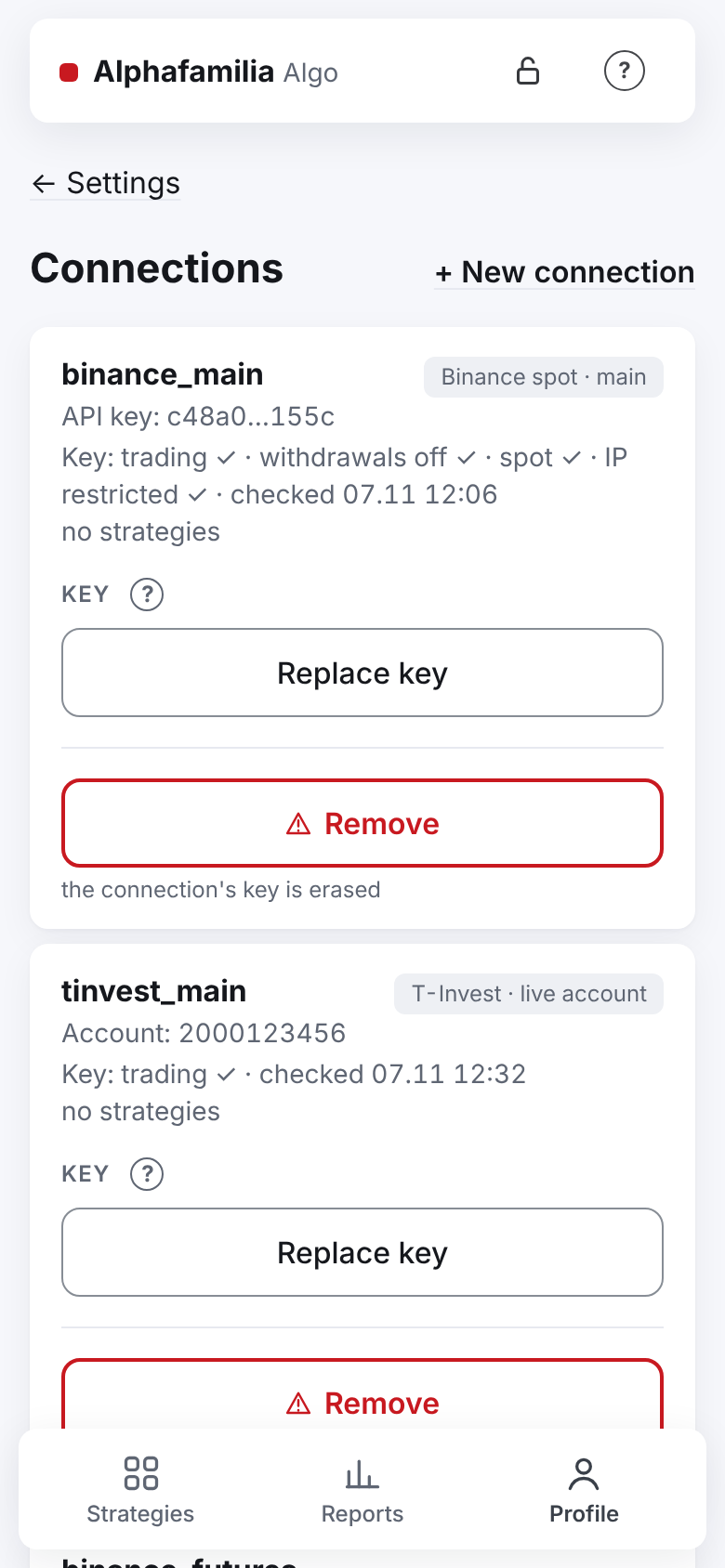
- The connection's card ("Profile" → "Settings" → "Exchange connections") shows what the exchange said about the key: "Key: trading ✓ · withdrawals off ✓ · IP restricted ✓ · checked …".
T-Invest has a token instead of a key. A token cannot withdraw money; the app checks only that the token may trade on the chosen account. Better issue a token with access to one account — the one for the strategies.
2. The IP restriction
The IP restriction is the list of addresses from which the exchange accepts the key. Put only the server's address there.
Begin a new connection: "Profile" → "Settings" → "Exchange connections" → "+ New connection", choose the market and the environment, "Next: the key →".
At step "2 · Key and check" the server's address is shown under the memo, with a "Copy" button.
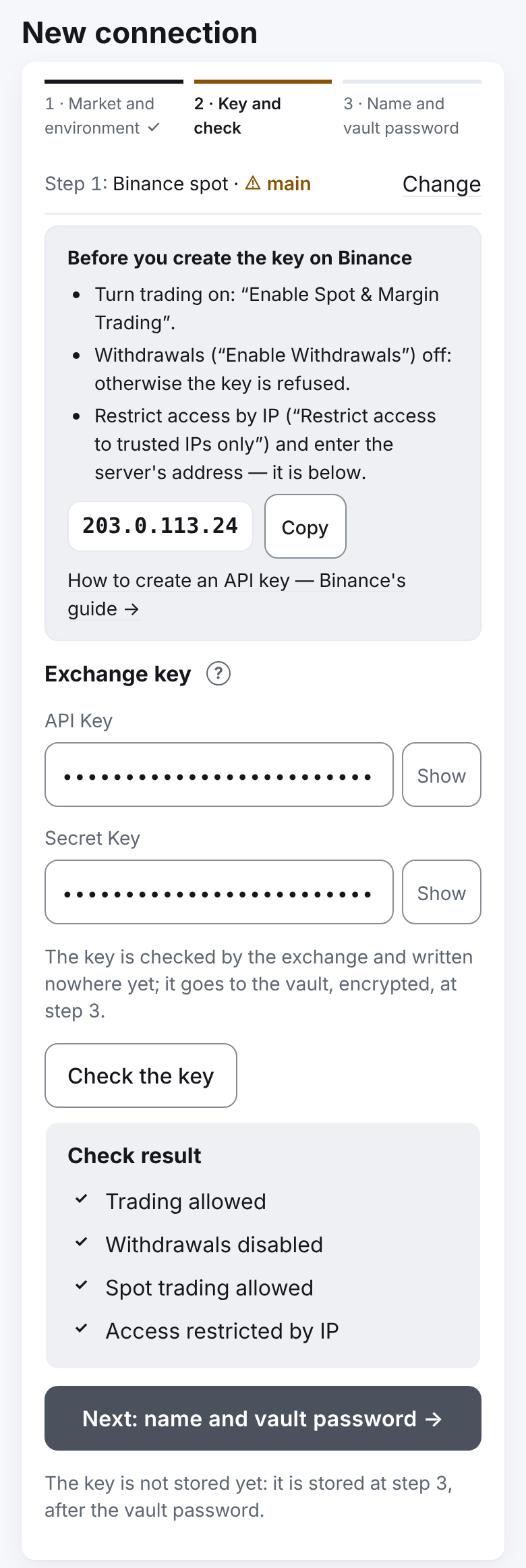
On the exchange, in the key's settings, switch the IP restriction on and paste this address.
In the app press "Check the key": the IP point should have a ✓.
A key without the restriction is accepted with a warning: "No IP restriction. It may be added, but better restrict the key to the server's address …"; the card shows "IP not restricted".
| Exchange | What happens without the IP restriction |
|---|---|
| Binance | By default the key may only read — the strategy cannot trade |
| BingX | If the key has an IP list, the server's address must be in it — otherwise the key is not accepted |
| Bybit | The key works for 90 days only; the app reminds you 7 days before and on the day |
| Coinbase | The key's IP list is not visible to the app and there is no warning — put the server's address on the CDP portal yourself; the key has no term |
| T-Invest | A token has no IP restriction — keep the token like a password |
Test keys (the Binance test network) do not need the restriction.
3. The vault and the password
- All your keys are kept on the server in the vault — encrypted with your vault password. The password is not stored anywhere. Without it the keys cannot be read — neither by the administrator nor by the developer.
- The vault password is not the exchange password. Make up a separate one, 10 characters or more, and keep it in a password manager.
- After three wrong passwords in a row the app asks you to wait about a minute.
- While the vault is open, the keys are decrypted in the server's memory — otherwise the strategies could not trade. That is why points 1 and 2 matter so much: even a key in the wrong hands cannot withdraw money and does not work from another address.
- The vault locks on a reboot of the server, when you press "Lock", and by itself 15 minutes after you have no working strategies and no strategy orders on the exchange. With the vault locked, no keys are in the server's memory.
- So that the strategies go on after an update of the program, an open vault lives through its restart: a sealed copy of the keys stays in the server's memory, and the key to it is held by a small service of its own (the "keeper"), in memory only too. Neither the copy, nor its key, nor the password is written to the disk; one opens nothing without the other. A reboot of the server and any locking of the vault destroy both — then only your password opens the keys.
- The password is wiped from its field as soon as the button is pressed, the key — once the connection is added.
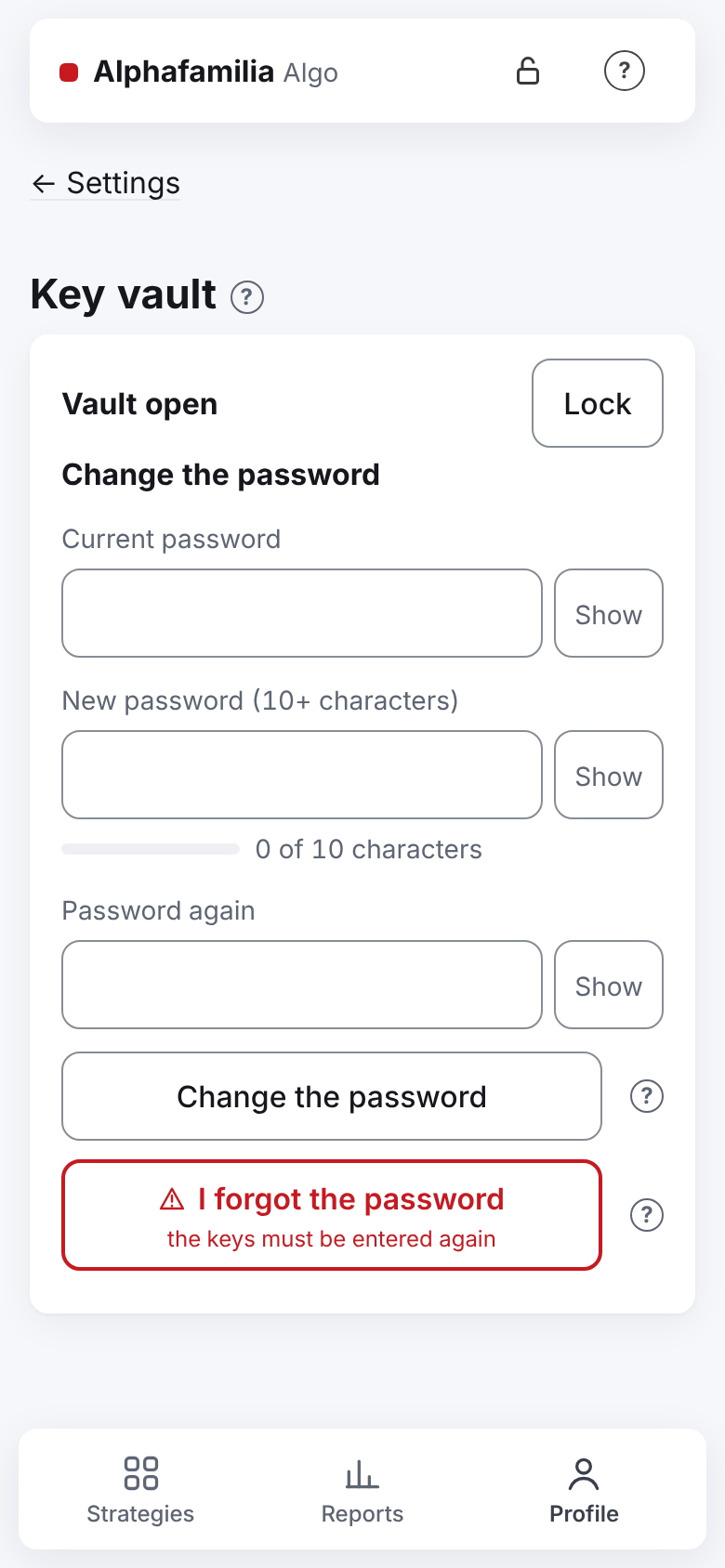
- The password cannot be recovered. Forgot it — "I forgot the password": the keys are entered again, the strategies and the history stay (how to do it).
Important. Never send the key, the secret, the token or the vault password to anyone — not in a chat, not to the system administrator. The service never asks for them. A key is entered only into the app's form.
4. What the administrator sees
The system administrator sees only people in "Administration":
| Sees | Does not see |
|---|---|
| Your name, Telegram ID, status ("active" or "blocked") | Your keys and vault password |
| How many strategies you have | Your strategies, their settings and pairs |
| Whether your vault is open | Sums, balances, trades, history and reports |
They may block a user: the strategies then stop and take off their orders (the asset is not sold), the vault locks, the keys stay encrypted. In detail — For the system administrator.
5. Two-factor protection on the exchange
The app cannot protect the sign-in to your account on the exchange — you do that.
- Switch on two-factor protection on the exchange (an authenticator app or a passkey). The exchange will ask for codes at sign-in, when a key is created and when money is withdrawn.
- Switch on withdrawal confirmation and, if the exchange allows it, a list of allowed withdrawal addresses.
- You sign in to the app through Telegram — switch on Telegram's cloud password (two-step verification).
6. "Show me as a trader"
By default nobody sees you. If you switch on "Profile" → "Settings" → "Copying trades" → "Show me as a trader", other users will see:
- your pseudonym ("Name for subscribers"), but not the name of your registration and not your Telegram;
- the pairs of your working strategies, the exchange and the market, the leverage, the number of closed cycles, the 30-day result in % of the budget and the strategy's rules;
- they will not see sums, balances, keys, connections, orders or trade prices.
About the copies you see only a number: the line "Copied by: N" on the screen of your lead strategy — above the "Settings" card (not on the "Copying trades" page; while there are no copies, there is no line). In detail — What subscribers see. To switch it off — "Do not show me" and "Save".
How to know it worked
- Each live connection's card: "trading ✓ · withdrawals off ✓ · IP restricted ✓".
- The card shows no key term — or you know when to replace the key.
- The vault password is kept in a password manager and differs from the exchange password.
- Two-factor protection is on at the exchange.
What you risk
- A key with the withdrawal right — if stolen, the money can be withdrawn. The app does not accept such a key, but if withdrawals are switched on later, the strategies go on working until you act.
- A key without the IP restriction works from any address.
- A lost vault password — the keys must be entered again, and until then the strategies' orders stand on the exchange unattended.
- Signing in to the exchange without two-factor protection — whoever learns the exchange password gets the whole account, past the app.
If something goes wrong
| What you see | What to do |
|---|---|
| "The key allows withdrawals — such a key is not accepted…" | Switch withdrawals off for the key on the exchange and check the key again |
| "🔴 … key (…): withdrawals are on" | Switch withdrawals off for the key on the exchange at once. Do not remember changing it — delete the key on the exchange, create a new one and replace it |
| The card says "IP not restricted" | Put the server's address into the key's settings on the exchange. The line is updated at the daily check, or at once on "Replace key" |
| You suspect the key was stolen | Delete the key on the exchange, create a new one and replace it in the app. Stop the connection's strategies before replacing |
| You suspect someone learned the vault password | Change it: "Vault settings" → "Change the password" (all strategies stopped) |
| Someone asks you to send a key or a password | Do not send it. The service never asks for that |