Connections and the vault
In short
- A connection is one market of your exchange account (for example, "Binance spot") with its key.
- All keys are kept on the server in an encrypted vault; your vault password opens it.
- After a server restart the vault is locked — open it so that the strategies work.
A connection is one market of your exchange account on which strategies trade: "Binance spot", "Binance USD-M futures", "Binance COIN-M futures", "BingX spot", "BingX USDT-M futures", "Bybit spot", "Bybit USDT futures", "Coinbase spot" or "T-Invest". A connection has a name, a market, an environment and a key. A strategy's market is its connection's market: no market is chosen when a strategy is created. All your keys are kept on the server in one encrypted key vault.
Where things are:
- the vault — "Profile" → "Settings" → "Vault settings";
- the connections — "Profile" → "Settings" → "Exchange connections" (there is no "Connections" tab at the bottom of the screen).
The first time, the order is: the vault password first, then a connection. The "First steps" checklist on the "Strategies" tab leads the same way (Access and sign-in).
The key vault and the vault password
- The vault opens with one password — the vault password. The vault keeps the keys of all your exchanges and broker, encrypted; the administrator cannot get at them.
- It is not an exchange password and not an exchange key. You make it up yourself — as a separate step, before the first key.
- The password is not stored anywhere and cannot be recovered. Remember it or keep it in a password manager. If you forget it, the exchange keys have to be entered again.
- Each user has their own vault and their own password.
- While the vault is locked, your strategies do not trade. Their orders on the exchange stay. After a reboot of the server the strategies wait until you open the vault; after an update of the program an open vault opens by itself and the strategies that were working go on.
The vault's state is shown in the header: an open vault is a lock's sign, a locked one is a yellow "Vault locked" with the lock and the button "Open" (on a phone — the lock and "Open"). Until the vault password is set there is no vault and no mark in the header.
Set the vault password
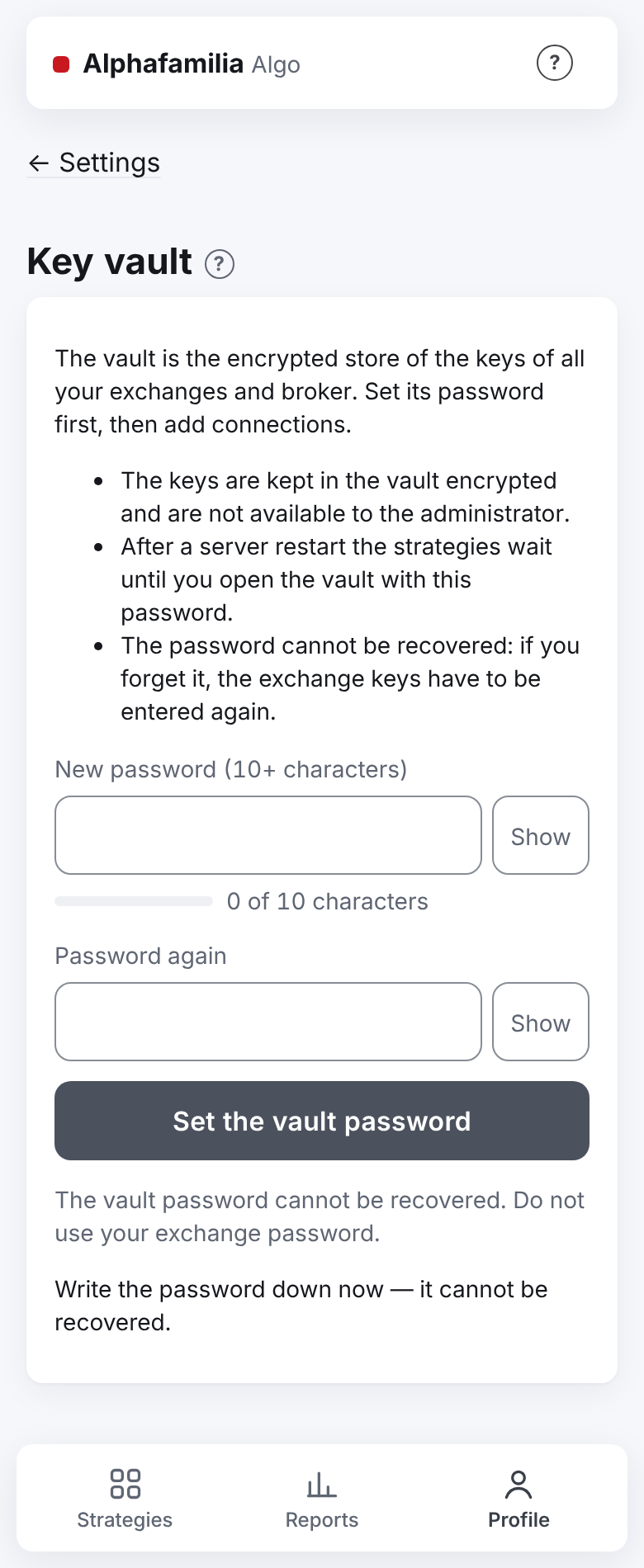
- Open "Profile" → "Settings" → "Vault settings" (or press "Set the vault password" in the "First steps" checklist) — the "Key vault" screen opens.
- The page says what the vault is: "The vault is the encrypted store of the keys of all your exchanges and broker. Set its password first, then add connections." — and three points: the keys are kept encrypted and are not available to the administrator; after a server restart the strategies wait until you open the vault with this password; the password cannot be recovered.
- Enter "New password (10+ characters)" and "Password again". Under the field you see how many characters are typed. Do not use your exchange password. Under the form — "Write the password down now — it cannot be recovered."
- Press "Set the vault password". The vault is open at once; the screen shows "The vault is ready. Next step — an exchange connection." and two choices, as in the checklist: "For tests" (test money) and "For trading" (real money). The choice opens the new connection form; "For tests" chooses the market's test environment in it at once.
While there is no vault, the new connection form and "Replace key" show instead of their fields "Set the vault password first — the exchange keys will be kept in it, encrypted." and the link "Set the vault password →"; the "Strategies" tab says the same (for a new user — step 1 of the checklist).
Once the vault exists, the "Vault settings" page shows its state ("Vault open" with the button "Lock", or "Vault locked" with the button "Open"), "Change the password" and "I forgot the password".
The first connection
A new connection is added in three steps — their numbers are shown above the form: "1 · Market and environment", "2 · Key and check", "3 · Name and vault password". The vault password is set by then.
Step 1. Market and environment.
Open "Profile" → "Settings" → "Exchange connections" and press "+ New connection" (or choose "For tests" / "For trading" in the "First steps" checklist or on the vault's screen). While there is no connection, the form itself begins with the question "What is the connection for?" and the two choices "For tests" / "For trading": step 1 appears after the choice — the form never opens straight on the live environment (the system administrator's decision 13.11).
Choose the market: "Binance spot", "Binance USD-M futures", "Binance COIN-M futures", "BingX spot", "BingX USDT-M futures", "Bybit spot", "Bybit USDT futures", "Coinbase spot" or "T-Invest". The app gets the list of markets and their environments from the server: when a new exchange appears, it appears here too. Under the market — a short hint about it. Spot and futures of one exchange account need two connections; the key is entered for each (it may be the same key) — the app does not take a key from another connection.
A futures market (of any exchange) can be chosen only after the quiz of lesson 14 of the Trading school — “Leverage, margin and liquidation”. Until it is passed, under the market there is “First — the quiz of the lesson “Leverage, margin and liquidation”” with the link “Open lesson 14 →”, and “Next: key →” cannot be pressed. The lesson opens in the same tab; answer the questions, go back with “← Home” and add the connection again. The system administrator and those who already had a futures connection count as having passed it.
Choose the environment. For Binance: "main" or "test network". For BingX futures: "live account" or "VST demo account"; BingX spot has one environment only — the live account. For Bybit: "live account" or "demo". Coinbase has one environment — the live account (there is no test environment). For T-Invest: "live account" or "sandbox". When there are connections already, the live environment is chosen by default (if you came with "For tests" — the test one). If "For tests" was chosen and the market has no test environment (Coinbase, BingX spot), a yellow note with a triangle under the environment: "This market has no test environment — only real money here.". When the live one is chosen, the switch and the warning under it are yellow, with a triangle: "The live environment is real money… To try the system out, start with the test one.". For a test environment, a grey line instead: "The test network, the sandbox and the demo account trade no real money: start there.".
Click "Next: the key →". Step 1 folds into the line "Step 1: market · environment" with the button "Change".
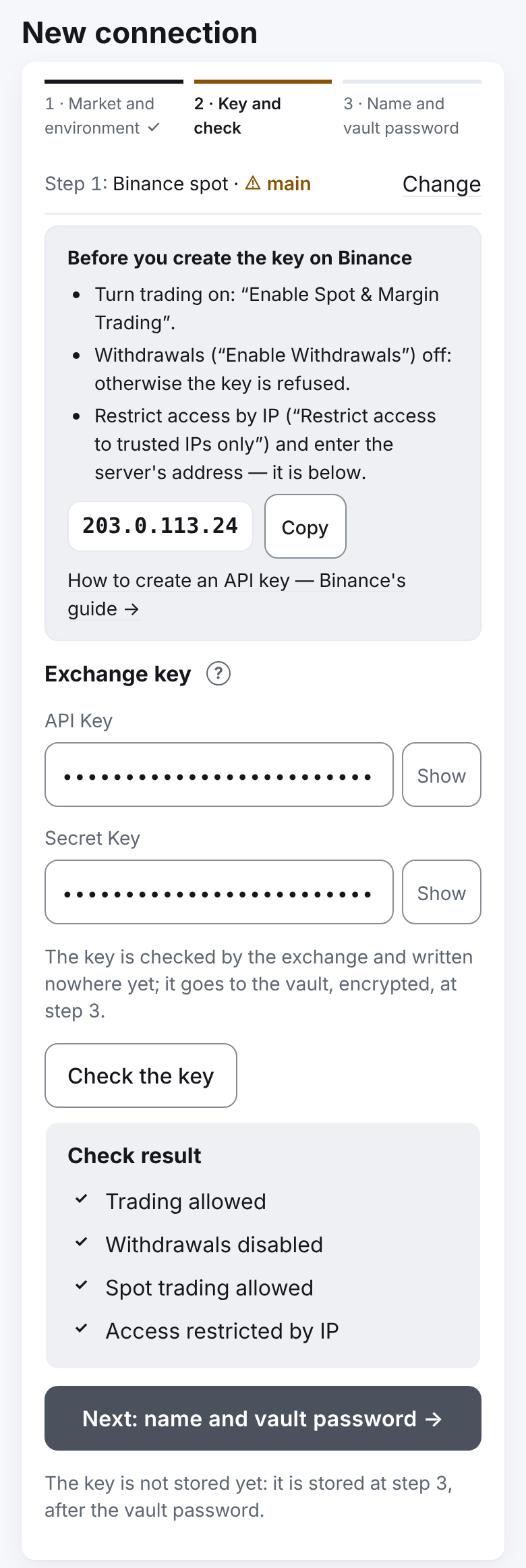
Step 2. Key and check.
- Above the fields — a reminder of what to switch on for the key on the exchange. For Binance: trading ("Enable Spot & Margin Trading" for spot, "Enable Futures" for futures), withdrawals off, access from the server's IP only. For BingX: the "Spot Trading" or "Perpetual Futures Trading" permission, "Withdrawal" and transfers off, the server's address in the IP whitelist. For Bybit: a "System-generated" key with "Read-Write" — for spot "Trade" under "Unified Trading", for futures "Orders" and "Positions" under "Contracts"; "Withdrawal" off; the key bound to the server's IP (Bybit). For Coinbase: a key of the CDP portal with the ECDSA algorithm and the "View" and "Trade" permissions, without "Transfer", restricted to the portfolio for the strategies, the server's address in the IP allowlist (Coinbase). The server's address is shown right there, with a "Copy" button, and a link to the exchange's guide. For T-Invest — a token with full access; a token has no IP restriction. The T-Invest sandbox has its own checklist: "Issue a sandbox token in T-Invest — not a live one.", "No sandbox account — after the token check, open one with the button: the app tops it up with 100,000 virtual ₽.", "The token has no IP restriction.".
- Enter the key:
- for Binance, BingX and Bybit — "API Key" and "Secret Key";
- for Coinbase — "Key name (organizations/…/apiKeys/…)" and "Private key (the whole text with BEGIN and END)"; the whole key file may also be pasted into either field;
- for T-Invest — "T-Invest token". Secret fields are hidden; the "Show" button next to a field shows what was typed, "Hide" hides it again.
- Click "Check the key" (for T-Invest — "Check the token and show the accounts"). The app asks the exchange and shows "Check result" point by point: ✓ — fine, ✗ — the key will not be taken, ! — allowed, but better fix it. For example: "Trading allowed", "Withdrawals forbidden", "Futures allowed" (for a futures connection; for a spot one — "Spot trading allowed"), "No IP restriction. It may be added, but better restrict the key to the server's address …". Binance lets only a key with an IP list trade: if a Binance key has no IP list and trading is not allowed, instead of the two lines "✗ … not allowed" and "! No IP restriction…" — one: "✗ Binance allows trading only to a key with an IP list. Add the server's address … to the key's IP list ("Restrict access to trusted IPs only"), switch on "Enable Spot & Margin Trading" (for futures — "Enable Futures") and press "Check key" again.". If the exchange told the key's term (Bybit: a key without an IP list works for 90 days), below — "The key works until … (N d)". If another market of this Bybit account is connected already — a warning about the shared wallet (see Further connections). At this step the key is stored nowhere: "The key is not stored yet: it is stored at step 3, after the vault password.".
- If the key will not be taken, under the points — "The key will not be taken — …" with the reason. Fix the key on the exchange or enter another and check again: the key stays in the fields; no need to choose the market and environment again.
- For T-Invest, choose the account. Accounts on which the token may only read are marked "read only" and cannot be chosen. The broker's tariff is not entered: the TP is planned with the broker's highest rate (0.3 %); once the strategy's trades reach 1,000 RUB or more — with the fee the broker actually charged, if it is below 0.3 %.
- Click "Next: name and vault password →". It works only after a successful check of this very key: if you change the key, the market or the environment, check it again.
Step 3. Name and vault password.
- The connection name fills itself — the market and the environment:
binance_spot_prod,bybit_spot_test,tinvest_prod(prod— the live environment,test— a test one). If you already have that name, the next free one is offered:bybit_spot_prod_02,_03… It follows the market and the environment until you type your own; you can correct it before saving. - Enter the password in the field "Vault password — to save the key into the vault" — the one you set in "Vault settings". Under the field: "The keys are kept in the vault encrypted and are not available to the administrator.". There is no new password and no repeat here.
- Click "Add". For the live environment the button has a yellow frame around it and a triangle ⚠, and is called "Add the live key", and before sending the app asks: "Add a live account's key? … is real money". "Cancel" erases nothing.
- Wait for the answer "Connection added.". If the vault is open, the key is available to the strategies at once; if it is locked, open it ("Open" in the header).
When you click "Add", the app asks the exchange about the key once more — the server does not take the first check's word for it. If the key was changed on the exchange in the meantime and no longer works, the form goes back to step 2 with the key typed and the reason. If the refusal is about the name or the password, you stay at step 3.
The password leaves the page at once when you click "Add" — the password field is cleared. The key is cleared from its fields when the connection is added.
Keys can be checked and added at most 10 times a minute; more often — "Too many key checks in a row — wait a minute.".
Rules for the connection name: 2–24 characters, small latin letters, digits and "_", a letter first. The name must be unique only among your own connections: another user may have a connection of the same name. If you already have such a name (case aside), the field says "The name is taken: you already have a connection of that name.", and "Add" does not work. A removed connection frees its name. A connection cannot be renamed.
What the exchange checks
The app does not keep the key until the exchange has answered that it is fine. Answers about the key itself come at step 2 after "Check the key" (in the line "The key will not be taken — …"), answers about the account and the name — at step 3 after "Add":
| Answer | What it means |
|---|---|
| "Connection added." | The key is accepted |
| "No IP restriction. It may be added, but better restrict the key to the server's address …" | The key will be accepted, but on the exchange allow only the server address from this message |
| "The key may not trade futures — enable it on the exchange." | A futures connection ("Binance USD-M futures", "BingX USDT-M futures"): the key is refused. Enable futures for the key |
| "The key may not trade spot — enable it on the exchange." | A spot connection ("Binance spot", "BingX spot"): the key is refused. Enable spot for the key |
| "The server's address … is not in this key's IP list — add it in the key's settings at the exchange and check again." | BingX: the key has an IP list, but the server's address is not in it. Put the address from the message into the key's IP whitelist |
| "The key allows withdrawals — such a key is not accepted. Turn withdrawals off on the exchange." | Turn withdrawals off and check the key again |
| "The key does not allow trading." | Allow trading for the key |
| "Binance allows trading only to a key with an IP list. Add the server's address … to the key's IP list …" | Binance: the key has no IP list, so trading cannot be switched on. Add the server's address to the key's IP list, switch trading on and check the key again |
| "The exchange does not accept this key. Common reasons: a test network key chosen for the live environment (or the other way round); the Secret Key not copied whole; the key deleted at the exchange; on Binance — the server's address not in the key's IP list." | One of the reasons named: check the environment at step 1, copy the key again in full, check that the key exists at the exchange and (Binance) that the server's address is in its IP list |
| "The exchange refused the key (code …). Check the key and try again; code -1021 means the clocks differ." | The exchange refused for another reason — its code is in the message. Code -1021: the server's clock differs from the exchange's, tell the system administrator |
| "The exchange did not answer — try later." | No connection to the exchange, or it has a failure (an error page or an empty answer instead of an answer), or the exchange itself asks to try later (overloaded, too many requests). It says nothing about the key. The same for the T-Invest token check |
| "The key has a wrong form (extra spaces?)." | The key was copied incompletely or with spaces. For Coinbase — the fields are swapped or the key name is pasted into both |
| "The key is of a classic Bybit account, and the strategy works only with the Unified Trading Account: …" | Bybit: upgrade the account to the unified one (Assets → "Upgrade to UTA") and check the key again — Bybit |
| "The token cannot trade on this account." | T-Invest: the token has no trading rights on the chosen account |
| "This market of the exchange account is already connected as '…': …" | You already have this market of the account under another name. One market of an account — one connection (spot and futures of one account — two connections). A connection of the same account made before the markets were split (with strategies of both markets or with no market) takes both markets: deal with it first (see below) |
| "This exchange account is already connected by another user." | One account can be connected by only one user |
| "The name is taken: you already have a connection of that name." | You typed the name of a connection of yours — type another (for example, ending in _02) |
| "Set the vault password first: “Profile” → “Settings” → “Vault settings”." | There is no vault yet — set the vault password |
| "Wrong vault password. It is the password you set in “Vault settings” — not the exchange's and not Telegram's. Forgot it — “I forgot the password” (the keys will have to be entered again)." | The vault password is wrong — enter it again. The same text — when opening the vault, removing a connection and changing the password |
| "Too many key checks in a row — wait a minute." | More than 10 key checks and additions in a minute. Wait a minute |
How to set up the key on the exchange — Keys on the exchange side.
Further connections
The steps are the same: at step 3 — the same vault password. If the vault is open, the new key is available to the strategies at once. If the vault is locked, open it ("Open" in the header).
Shared wallet (Bybit). On Bybit the spot and the futures of one account work on one wallet — the Unified Trading Account. Both markets of one account may be connected, but when the second is added the app warns: "The spot and the futures of this Bybit account share one wallet (the Unified Trading Account). The spot coins are the futures' collateral: in a liquidation the exchange may sell them.", and the cards of both connections get the mark "shared wallet". The spot's free money is less by the futures' margin. If the exchange sells spot coins in a liquidation, the spot strategy's records differ from the exchange, and it stops in an emergency. For large sums — a Bybit subaccount for each market. More — Bybit.
The list of connections
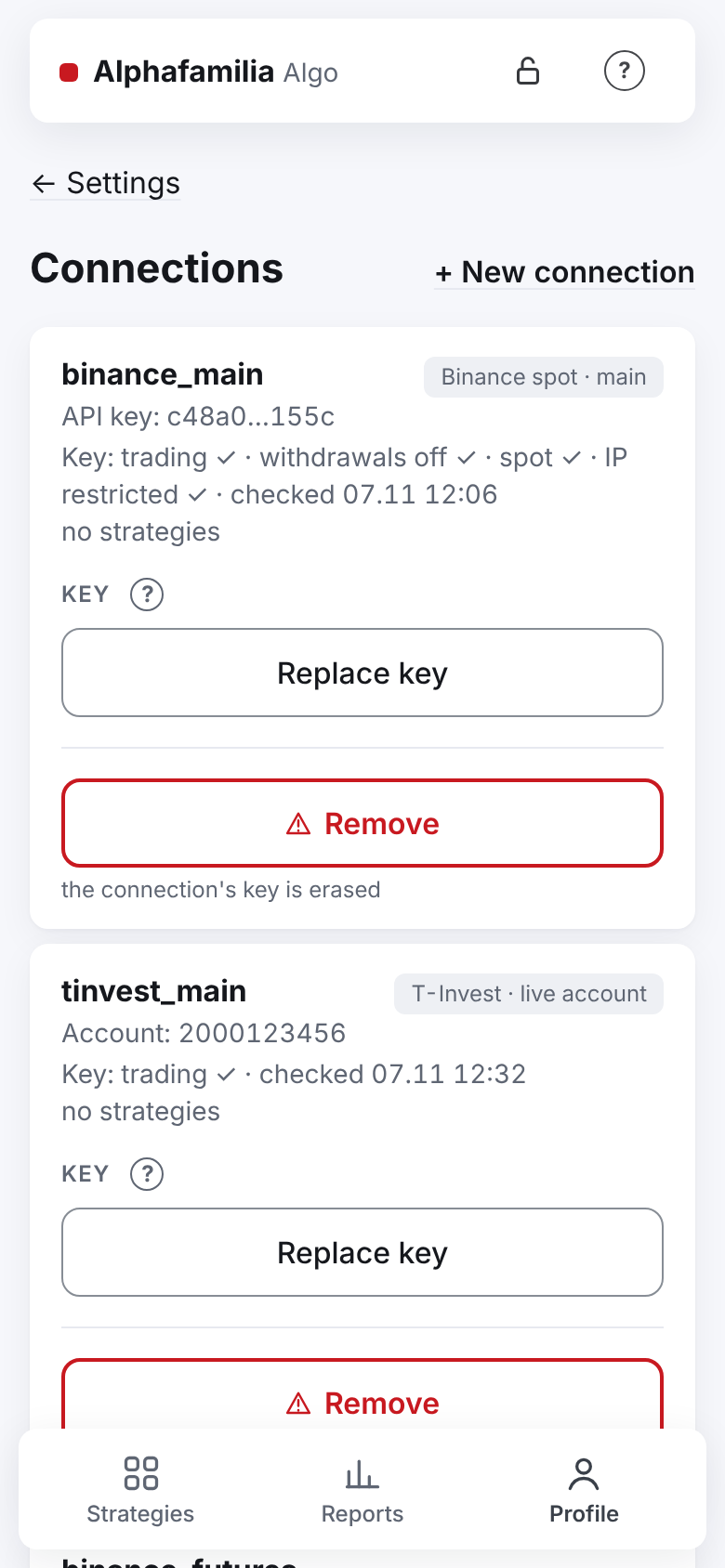
The list is in "Profile" → "Settings" → "Exchange connections" (the page "Connections", "← Settings" at the top, "+ New connection" on the right). Each connection shows its name, market and environment, the mark "shared wallet" (Bybit, both markets of one account), the account (for T-Invest), "API key" — the start and the end of the key (for Binance, when the vault is open) — and the strategies of this connection (or "no strategies"). A long connection name is shown whole: if there is no room beside it, the market mark goes under the name, on the right.
The key's state line shows what the exchange said about the key at the last check (when the key was added or replaced), for example: "Key: trading ✓ · withdrawals off ✓ · IP restricted ✓ · checked 01.11 12:30". If the key has no IP restriction, a warning with the server's address follows. A connection added before this version says "The key's state appears after it is checked — when the key is replaced.". After "I forgot the password" there are no keys, and the state is gone from every connection. The key itself is not kept in this line.
The key's term. If the exchange told until which day the key works (Bybit: a key without an IP list is switched off after 90 days), under the state — "The key works until 30.01.2027 (89 d)"; 7 days and less — the line is marked, on the last day — "… — it expires today", after it — "The key expired on … — replace it". Telegram reminds you 7 days before and on the day (Telegram messages).
The keys' daily check. Once a day the server checks the keys of all exchanges itself (one by one, not while the exchange blocks the server's address) and tells in Telegram if a key's term changed, appeared or is gone, if the key stopped working, if withdrawals were switched on for the key or the trading permission is gone.
Connections made before the markets were split
Before 2.0.21 a connection had no market. The update gave each Binance connection the market of its strategies (archived ones aside): futures strategies only — "Binance USD-M futures", spot strategies only — "Binance spot". T-Invest — "T-Invest". Nothing is guessed:
- Strategies of both markets ("Binance: spot and futures"). The strategies go on working as before. No new strategy can be made on such a connection — its card has a red note. To make new ones: stop and archive the strategies of one market, then choose the market of the rest and press "Set the market"; for the other market add a separate connection.
- No strategies ("Binance: no market chosen"). No market is set by itself. If you do not need the connection, delete it ("Delete"). If you do, choose the market and press "Set the market" — once; then strategies can be made on the connection. While no market is chosen, no other connection of the same account can be added, neither for spot nor for futures.
The market can only be that of all the connection's strategies (otherwise "The connection has strategies of the other market …"), and it never changes afterwards. A strategy cannot come back from the archive onto a connection of another market: "The strategy trades on another market than its connection now …" — its history is kept.
Replace the key
A key can be replaced only with a key of the same account, and only when all strategies of this connection are stopped (or in an emergency).
- Stop the connection's strategies.
- In the connection's card, in the block "Key" (one "?" beside the block's heading explains both buttons), click "Replace key".
- Enter the new key and "Vault password — to save the key into the vault" ("Show" next to a field shows what was typed). If there is no vault (after "I forgot the password"), the link "Set the vault password →" is there instead of the fields: set a new password first.
- Click "Replace key". The exchange checks the new key as when a connection is added; the key's state in the card is updated.
- Wait for the answer "Key replaced.".
If the key belongs to another account, the answer is "This key belongs to another account — only a key of the same account may replace it.". If strategies are running — "Stop the strategies first.".
Remove a connection
You can remove a connection that has no strategies or whose strategies are all archived. While any strategy is not archived, there is no "Remove" button: stop the strategies and archive them first. If there are archived strategies, the window warns: their history stays, but they can never come back from the archive once the connection is removed ("This strategy's connection was removed — it cannot come back from the archive").
- In the connection's card, in the block "Key", click "Remove" — the red-framed button stands under "Replace key", behind a line, with the note "the connection's key is erased" (a dangerous action).
- Enter the "Vault password".
- Click "Remove" and confirm.
The key is erased from the vault. The record of the connection stays in the history; its name is freed — a new connection may be named the same.
Change the password
You can change the password when all your strategies are stopped (or in an emergency).
- Open "Profile" → "Settings" → "Vault settings", the section "Change the password".
- Enter "Current password", "New password (10+ characters)" and "Password again". Under the new password you see how many characters are typed.
- Click "Change the password".
- Wait for the answer "Password changed.".
I forgot the password
The vault password cannot be recovered. You can put the old vault aside and create a new one with a new password. Strategies, history and accounting are kept, but you have to enter all the keys again.
The reset always works — also with the vault locked and with strategies running. All the keys of the vault are removed. Strategies that were not stopped become "stopped"; their orders stay on the exchange. The message "Keys reset" lists those orders. Set a new vault password, press "Replace key" on each connection and then "Start" on the strategy: "continue" — the cycle goes on with the same orders; "new cycle" — the old cycle closes as interrupted and its orders are taken off. Until "Start" the strategy takes nothing off and places nothing, but counts the fills. The connections stay, without keys.
- In "Profile" → "Settings" → "Vault settings" click "I forgot the password" (the line under the button: "the keys must be entered again").
- Read in the window "Reset the vault password?" what will happen, and click the red "Reset the password" button.
- Wait for the answer "Done: set a new vault password, then press “Replace key” on the connections.". The page shows the new vault's form by itself: "The keys were reset, the connections remain. Set a new vault password, then press “Replace key” on each connection.".
- Enter the new password twice and press "Set the vault password". The answer: "The vault is made and open. Now press “Replace key” on each connection." and the link "To the connections →".
- On each connection press "Replace key", enter the key and the new vault password (Replace the key).
Important. While there are no keys, the stopped strategies do not trade and do not take their orders off. If an order is filled before you cancel it by hand or enter the keys, the strategy counts the trade when the keys are back.
Open and lock the vault
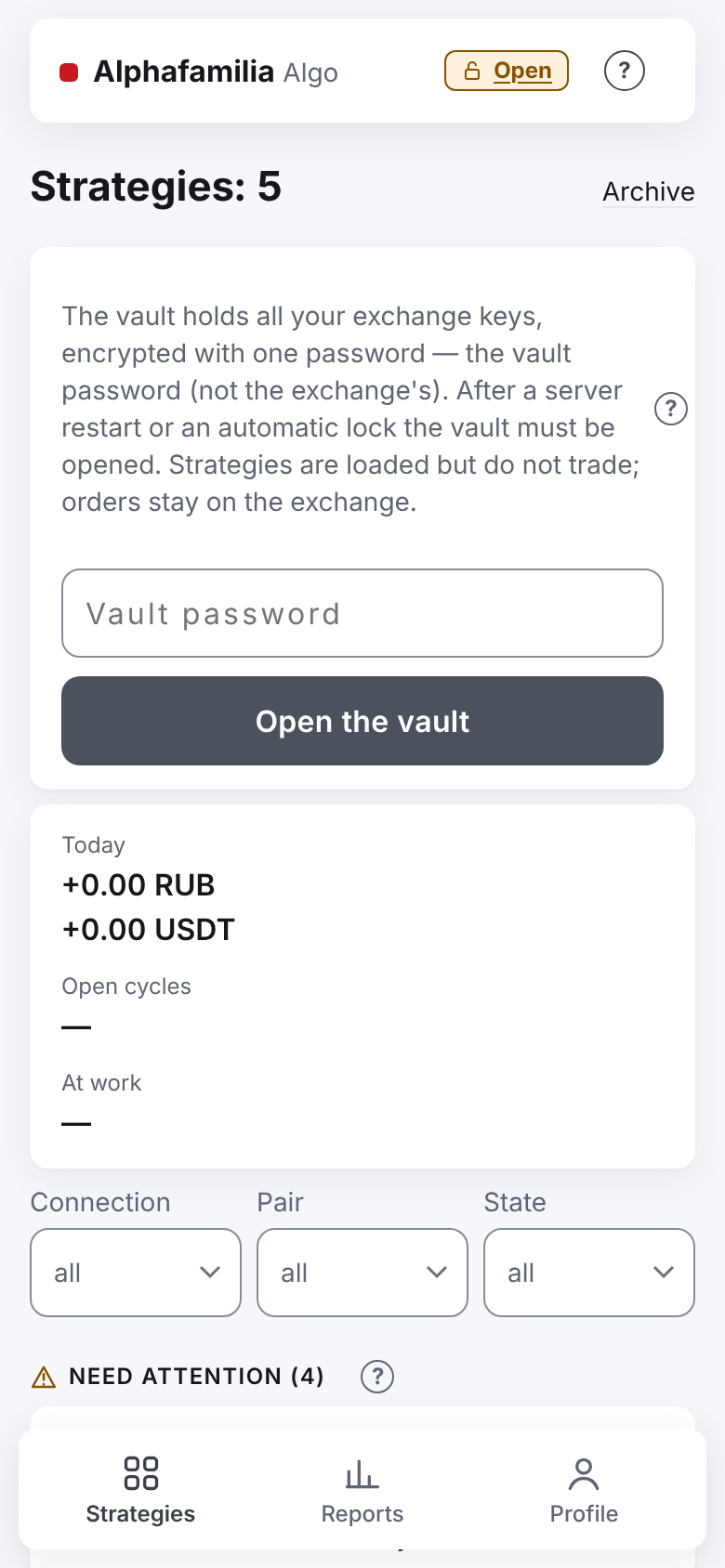
Open the vault. When the vault is locked, the header has the yellow mark "Vault locked" with "Open". Click "Open" (in the header or in "Vault settings") — the app goes to the "Vault password" field on the "Strategies" tab. Enter the password and click "Open the vault". The field is cleared right after you click. After three wrong passwords in a row, the app asks you to wait: "Three wrong passwords in a row — wait … s." (about a minute).
Lock the vault. When the vault is open, the header shows a lock's sign, and "Vault settings" shows "Vault open" with the button "Lock". Click the lock's sign or "Lock" and confirm "Lock the key vault?". The vault removes your keys from the server's memory. Your strategies stop working until the vault is opened again. Orders on the exchange stay. Other users' vaults are not affected. A strategy you stopped stays stopped after the vault is opened again — even if the stop was not recorded yet because the database did not answer. Its orders the exchange had not taken off yet it takes off by itself right after the vault is opened. Until the stop is recorded, the group "Start" under the list of strategies (and the server command "start all") passes such a strategy by and names it in its answer; only
its own "Start" button starts it.
When you press "Stop" while the database does not answer, you see not "Done" but a message that stays on the screen until "OK": "The stop is accepted but not recorded yet: the database does not answer…". If the exchange did not confirm that some orders are off, the same message names them ("The exchange did not confirm that these orders are off: …") — they may still stand on the exchange, check them there. If the exchange did not even say which orders it holds, the message says that too. When all the orders are off — "The strategy's orders are off the exchange."
Such a stop holds over a restart of the service too (an update, a crash): a strategy stopped while the database did not answer does not go on by itself — it stays stopped, and the stop is recorded as soon as the database answers. After a reboot of the server the vault is locked, and the strategy waits for the password and your "Start", like any other.
Automatic lock. The vault locks by itself 15 minutes after you have no running strategies and no strategy orders of your own left on the exchange (a strategy paused earlier also counts as running).
After a reboot of the server the vault is always locked. After an update of the program, a rollback or its fault, a vault that was open opens by itself and the strategies go on. More — Server restart and update.
Important. Never write keys in a chat. The service itself never asks you to send a key or the vault password.
Next: Creating a strategy