Access and sign-in
In short
- You sign in with Telegram — the service has no password of its own for signing in.
- The system administrator gives access: approves your request or adds you by your Telegram ID.
- In a browser a sign-in lasts until the tab is closed, but no longer than 12 hours; in Telegram it repeats by itself.
Roles in the system
The system has three roles. They combine: the administrator and a trader are users too, with their own strategies.
- connects their exchange
- starts strategies or copies
- reads the result and the reports
Does not see: others' strategies, money and keys
- gives people access
- blocks and unblocks
- chooses the allowed pairs
Does not see: others' strategies, amounts and keys
- lets others copy their trades
- runs their own strategy — the copies repeat it
- sets a name for the followers
Does not see: who copies them and with what amounts
What the application shows — in detail
| User | Administrator | Trader | |
|---|---|---|---|
| Own strategies, amounts, trades | yes | yes | yes |
| Others' strategies, amounts, trades | no | no | no |
| Exchange keys | own only | own only | own only |
| The list of users | no | name, Telegram ID, status, number of strategies, safe | no |
| Copies of own strategies | no | no | the number of copies only |
| Traders: alias, rules, result in % | yes | yes | yes |
The keys are kept on the server encrypted under your password — use the service only if you trust its administrator.
The administrator and the trader are users too, with strategies of their own.
User
Anyone the administrator has opened access for.
- Connects their exchanges. The keys are kept in their vault, encrypted with their password.
- Creates and starts strategies with their own money, manages them, looks at the reports.
- Gets messages about their strategies in Telegram.
- May copy another trader's trades (I want to repeat someone else's trades).
- Does not see other people's strategies, money and keys.
System administrator
This is a user who also has the section "Profile" → "Administration".
- Chooses how people get access: "Administrator only" or "Open, with approval".
- Gets requests to register in Telegram and approves or rejects them.
- Adds a user by Telegram ID, blocks and unblocks.
- Chooses which pairs new strategies may trade.
- Gets the morning summary and service messages about the server.
- Sees of the users only the name, Telegram ID, status, how many strategies and whether the vault is open. Does not see other people's strategies, amounts, trades and keys in the app (but see "Important" at the end of the page).
In detail — For the system administrator.
Trader
A user whose trades may be copied.
- Becomes one by themselves: "Profile" → "Settings" → "Copying trades" → "Show me as a trader" and a name for subscribers. They appear in the list of traders when they have a running strategy with their own settings.
- Other users create copies of their strategies. A copy trades by the trader's rules (entry, averagings, TP) with the subscriber's money and at the subscriber's exchange prices.
- The trader sees only "Copied by: N" on the strategy's screen. Who copies and with what amounts is not visible to them.
- Subscribers see their pseudonym, the rules and the results of the strategies in percent. They do not see the trader's amounts, balances, keys and trades.
In detail — I want my trades to be copied.
How access is given
Click "Sign in"
you
on the service's site
Confirm the sign-in
you, in Telegram
and allow the bot to write to you
Request approved
the administrator
the request reaches them in Telegram
"Access granted"
the system
a message in Telegram — sign in
From Telegram: the app button in the bot's chat — then as from step 3.
Access is given by the system administrator: you send a request — you sign in on the site or open the app in Telegram — and the administrator approves it, usually within a day. (The other way, where the administrator adds a person by their Telegram ID, is described in Administration; on this server requests are on.)
You sign in through Telegram — the service has no separate sign-in password. So you need your Telegram account, on a phone or a computer.
Get access: a request through the site
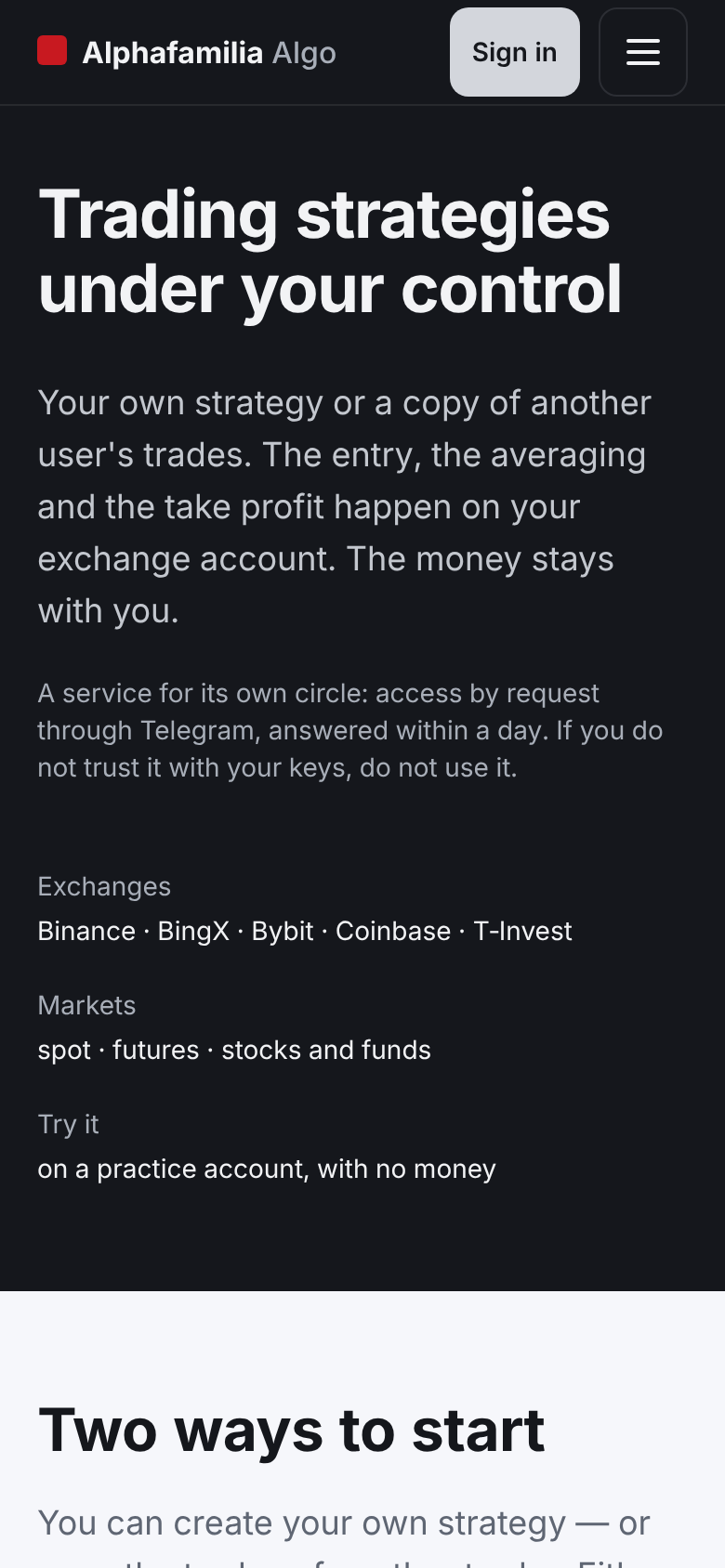
- Open the service's address in a browser. Until you sign in, it is the service's main page.
- Click "Sign in" at the top of the page or in the block "Try it on a practice account" at the bottom. Telegram's sign-in window opens.
- Sign in to Telegram. If the window asks for a phone number, enter the number your Telegram is tied to and confirm the sign-in in Telegram itself: a sign-in request arrives there.
- Telegram asks whether to allow the bot to write to you — allow it. Otherwise the bot cannot tell you that access is open.
- The page shows "Request sent". At this moment the administrator got the message "🔴 Request to register" in Telegram with the buttons "✅ Approve" and "❌ Reject".
- Wait for their decision. When they approve, the message "ℹ️ Access granted" — "The system administrator approved your request." — arrives in the chat with the bot, with the button "Open the app".
- Press this button, or open the service's address again and click "Sign in" — the app lets you in.
Get access: a request from Telegram
- In Telegram, open the service's bot @alphafamilia_live_bot and tap the app button.
- The app shows "Request sent" — then as in steps 5–7 above.
While the request waits or was rejected, nothing in the app is open to you. A request is sent once: signing in again (in Telegram or in a browser) shows "Request sent" again, and the administrator gets no second message. If the administrator rejected the request, the app says "This Telegram account is not allowed in." (in a browser — in the block "Try it on a practice account" at the bottom of the service's page) — write to them: @alphafamilia.
Sign in via Telegram
- In Telegram, open the service's bot @alphafamilia_live_bot.
- Tap the app button in the chat with the bot.
- The app opens and lets you in automatically.
If the app says "This Telegram account is not allowed in.", the request is not approved yet (or was rejected), or you are signed in to Telegram with another account.
Sign in in a browser
- Open the server's address in a browser — the one this help is opened at. Until you sign in, this address shows a page about the service, "Alphafamilia Algo": what the strategy does, safety, the exchanges, the limitations, lessons for beginners. After signing in, the same address shows the app.
- Click "Sign in" at the top of the page or the same "Sign in" button in the block "Try it on a practice account" at the bottom — Telegram's sign-in window opens. If Telegram is unavailable right now, "Sign in" at the top scrolls to that block.
- Confirm the sign-in in Telegram. Telegram may ask whether to allow the bot to message you — allow it: this is how messages about your strategies arrive.
- The browser returns to the app, already signed in.
If instead of the "Sign in" button at the bottom it says "Sign-in is unavailable right now — please try again later.", open the app with the button in the Telegram bot. The help opens without signing in too: the link "Help" at the top of the service's page (on a phone — in the menu behind the button with three lines). The server's address with /help/en/ at the end opens the help's start page too (/help/ru/ — the Russian one).
How long a sign-in lasts
- In a browser, a sign-in lasts until the tab is closed, but no longer than 12 hours. Once the tab is closed or 12 hours have passed, the address shows the service's page again — sign in anew.
- After a server restart or update, the browser also asks you to sign in again.
- In Telegram, you are signed in again automatically; you will not notice it.
What you see after signing in
The app's sections are "Strategies", "Reports", "Profile". They are on the bar at the bottom of the screen — on a phone, in Telegram and in a computer's browser alike; the bar stays in place while the page scrolls. There is no "Connections" tab: the exchange connections are in "Profile" → "Settings" → "Exchange connections".
At the top is the header, one line: the app's name "Alphafamilia Algo" on the left, the vault and "?" on the right. The language and "Sign out" are in "Profile" (before the sign-in the language button stands in the header).
On the right of the header:
- the key vault — an open vault is shown by a lock's sign; tap it to lock the vault (after a confirmation). A locked one — a yellow "Vault locked" with the lock and the button "Open" (on a phone — the lock and "Open"): "Open" leads to the password field on the strategies list (Connections and the vault). Until the vault password is set there is no vault yet — and no such mark;
- "?" — help for the screen that is open now: on a strategy's screen — about its buttons, in the new strategy form — about creating a strategy, and so on. The help opens the same way as from "Profile": in Telegram — in the built-in browser, in a browser — in a new tab, so a form you are filling in is not lost. The help's contents are in five groups: "Start", "I want to…", "Trading school", "Exchanges", "Reference"; the group of the page you are reading is open. On a computer the contents are on the left, and "RU" (the same page in Russian) and "← Home" are in the header. On a phone the contents are under "Contents" at the top of the page, and at the bottom is a bar: "Contents" (the help's start page), "Home" and "RU". "Home" leads to the start of the site: into the application if you are signed in, otherwise to the main page;
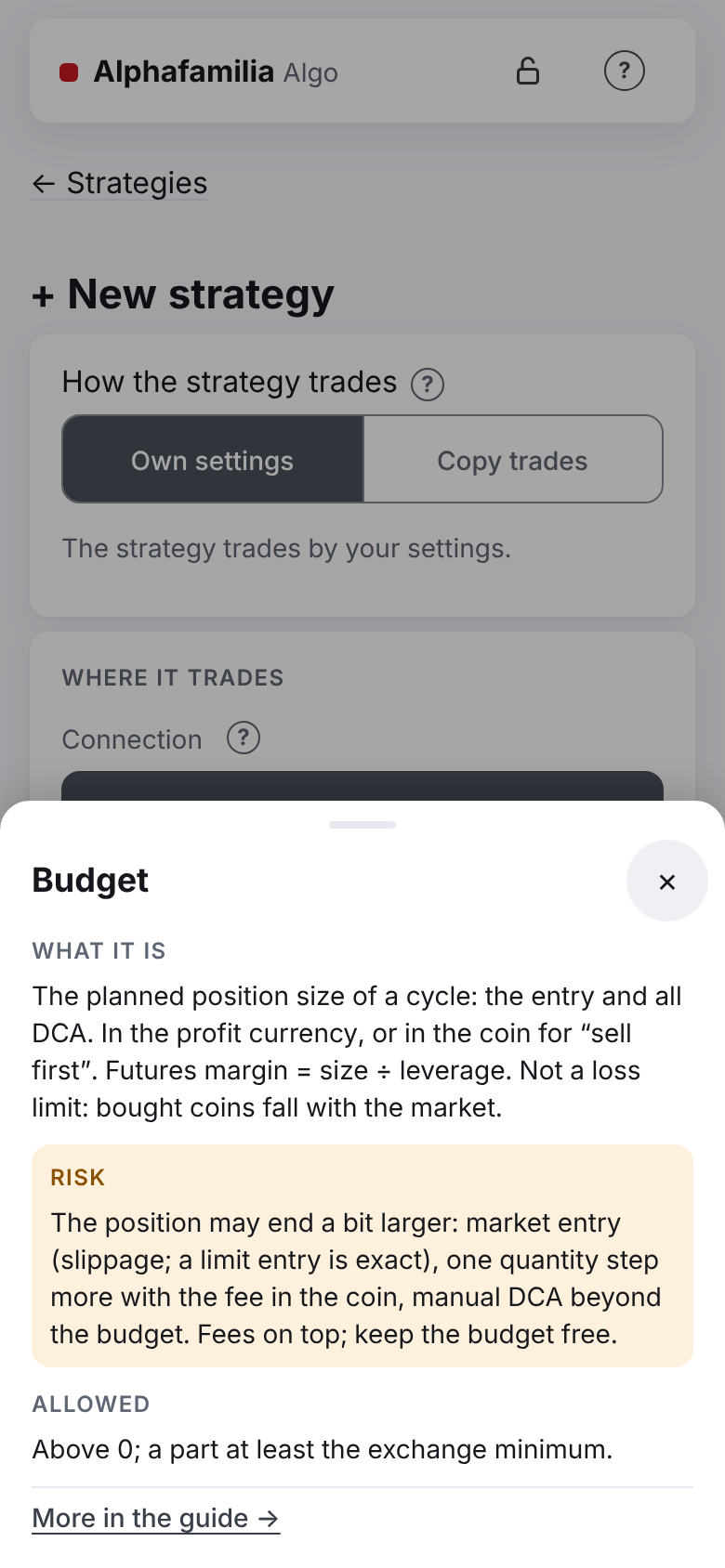
Many fields (right after the field's name), blocks of buttons and cards also have a "?" sign. Buttons have one per block: under the strategy form's buttons — the link "What do the buttons do?", on a strategy's screen — a "?" beside the headings of the blocks "Starting", "Controls" and "Stopping". Such a window gathers the hints of all the block's buttons, each under the button's name. Tap the sign to open a short hint: "What it is", "Risk" and "Allowed"; at the bottom — the link "More in the guide →". For the fields of the strategy form the link leads straight to that field's row in the guide's table of fields (for "Mode", "Profit in the coin" and "Leverage" — to their detailed sections). On a phone the hint slides up from the bottom, on a computer it opens next to the sign: under it, or above it when there is little room below. The window is always whole on the screen: if a long text does not fit, the window is lower and the text scrolls inside it — scroll down to the link "More in the guide →". It closes with the cross, a tap outside it or the Esc key.
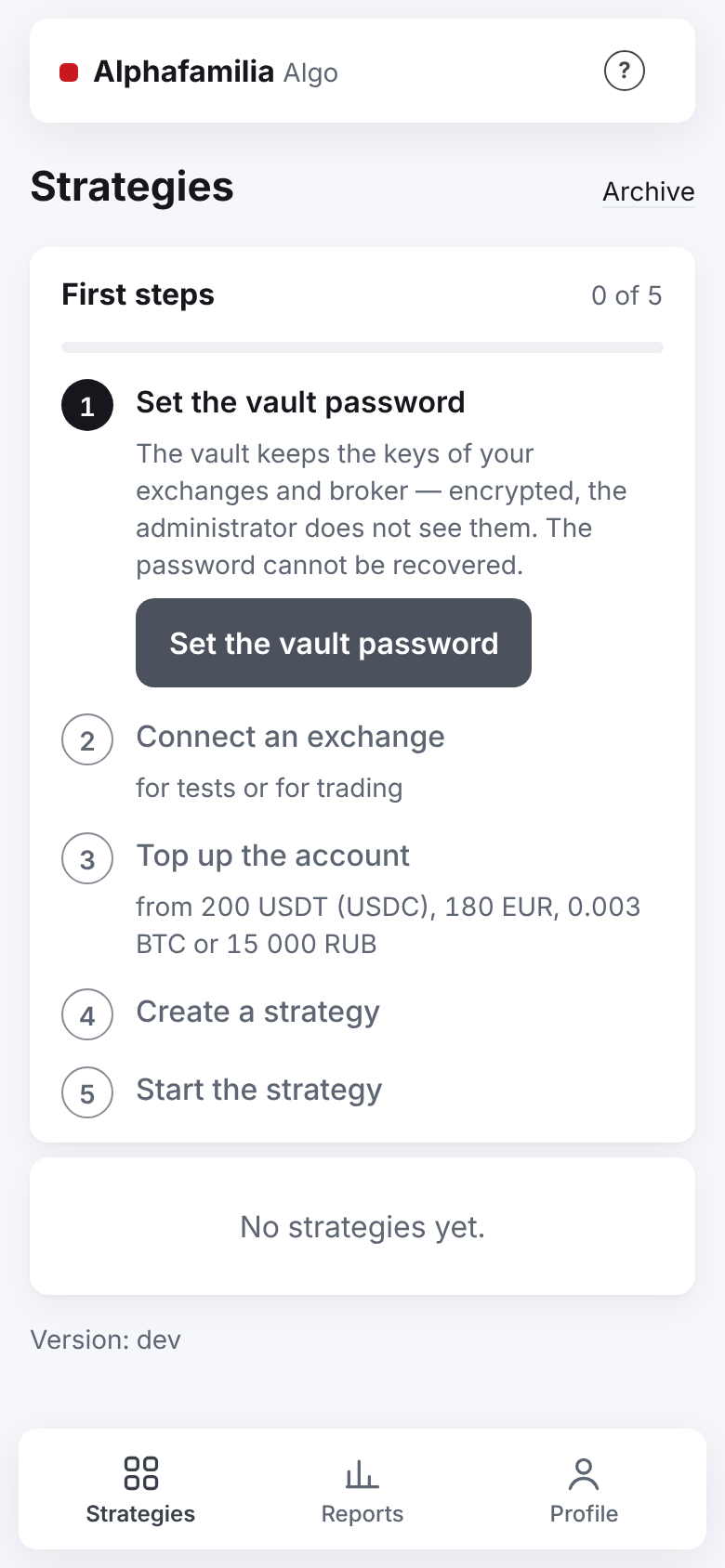
At the very first sign-in there are no strategies: the "Strategies" tab shows the "First steps" checklist (see below) and the line "No strategies yet." (when the vault is open and there is a connection — with the button "+ New strategy" under it). Until the server answers, grey placeholder bars stand in for the cards; with no connection to the server a yellow bar above the screen says "No connection to the server, retrying…": the app repeats the request by itself.
First steps
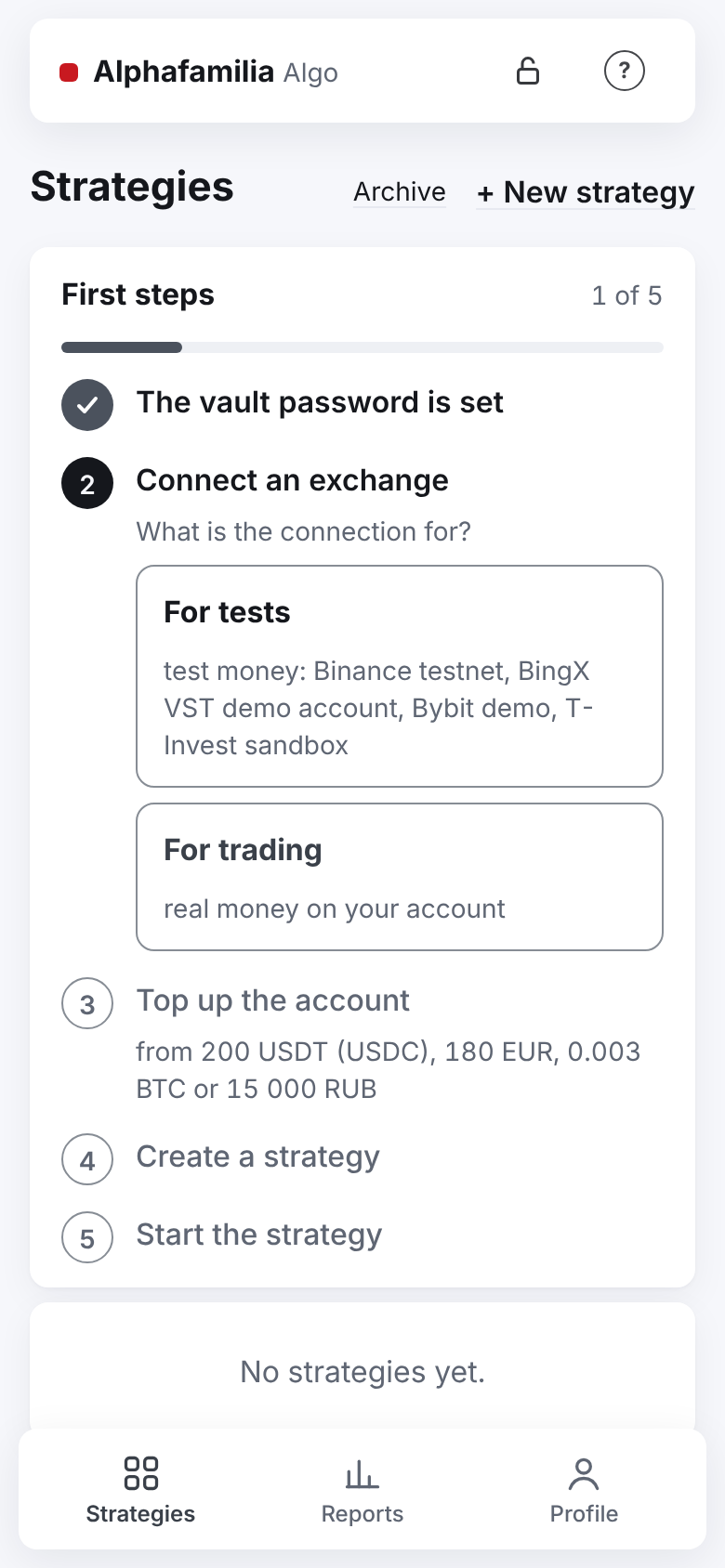
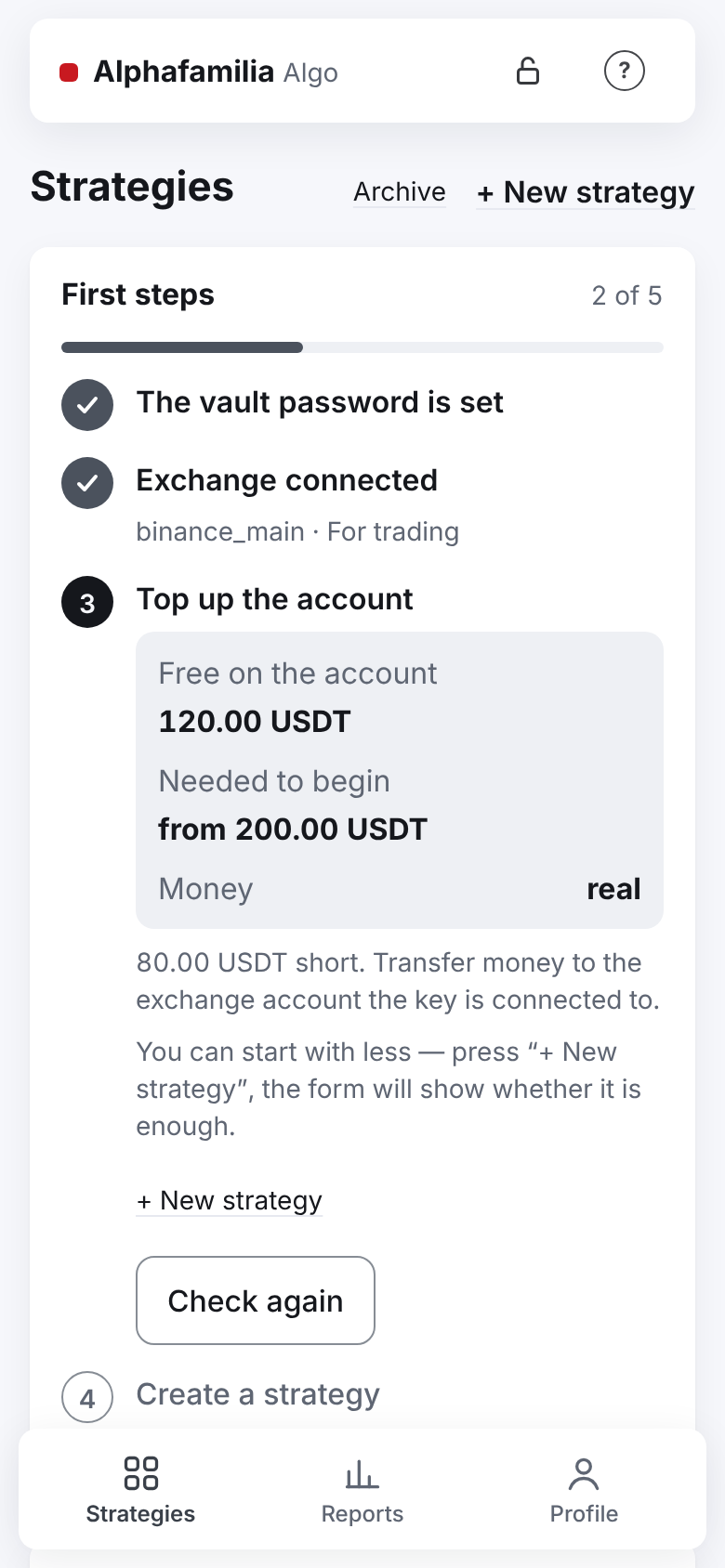
A new user sees the "First steps" card on the "Strategies" tab — five steps from an empty profile to a running strategy. On the right — "N of 5", under the title — a progress bar. A step done is ticked; only the current step is open — with an explanation and its action's button; the next steps are grey.
- "Set the vault password" — the button "Set the vault password" leads to "Profile" → "Settings" → "Vault settings", the "Key vault" screen (The key vault and the vault password). Done — "The vault password is set".
- "Connect an exchange" — the question "What is the connection for?" and two choices: "For tests" (test money: Binance testnet, BingX VST demo account, Bybit demo, T-Invest sandbox) or "For trading" (real money on your account). The choice opens the new connection form; "For tests" chooses the market's test environment in it at once. Done — "Exchange connected" and the line "connection name · For tests" (or "For trading"). The vault's screen shows the same two choices right after the vault is made, and the connection form, while there is no connection, begins with this question itself — it never opens straight on the live environment.
- "Top up the account" — from 200 USDT (or 200 USDC) on a crypto exchange, from 180 EUR at Coinbase, from 0.003 BTC on COIN-M or from 15 000 RUB at T-Invest is needed. The card shows "Free on the account", "Needed to begin" and "Money" — "test" or "real", and below how much is short and where to top up: test money is given by the exchange itself in its test environment, real money — by a transfer to the exchange account the key is connected to. For real money, below — where the exchange keeps the money the strategies see: BingX — from the Fund account to the spot (futures) one; Bybit — the Unified Trading account ("if the money is on the Funding account, move it"); Binance futures — from the spot wallet to the futures one (USDⓈ-M), COIN-M — BTC to the COIN-M wallet; Coinbase — into the key's portfolio; T-Invest — the account chosen in the connection. Further below — "You can start with less — press “+ New strategy”, the form will show whether it is enough.": 200 USDT is the recommended minimum, not the exchange's rule. The button "Check again" asks the exchange anew. While the vault is locked the account is not checked: "Open the vault — then the account can be checked.". If the system administrator has allowed no pair in the account's currency on the market — "The system administrator has not allowed pairs on this market yet — ask him. The account cannot be checked until then." (at T-Invest — "securities") — write to the system administrator, @alphafamilia. The connection checked is your strategy's, or, with no strategies yet, the last one added.
- "Create a strategy" — the button "+ New strategy" opens the strategy form (Creating a strategy). A strategy made counts for step 3 too: its form checked the money itself.
- "Start the strategy" — the button "Open …" leads to the strategy's screen, then "Start".
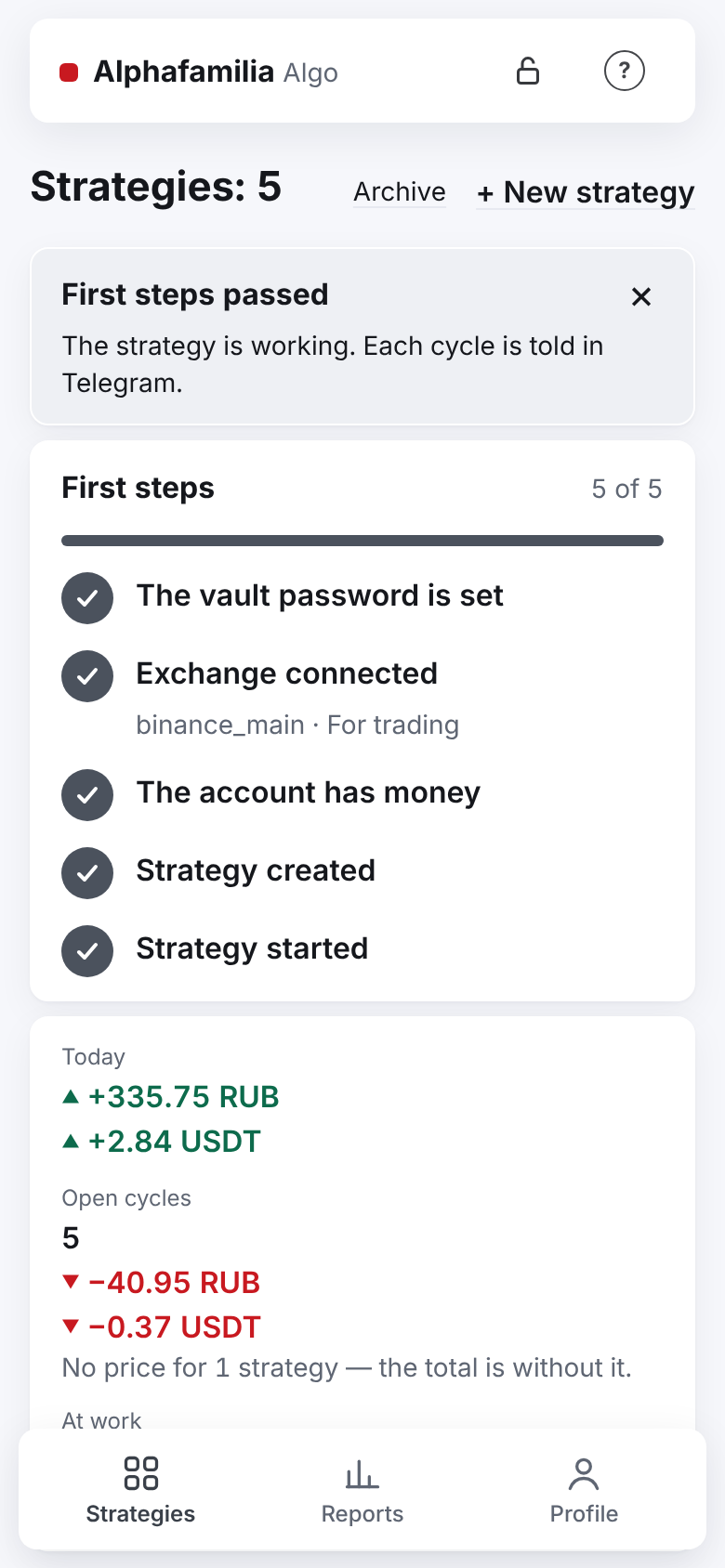
The marks are set by the server from your data, not by the taps. When all five are done, the card "First steps passed" appears once (this time the checklist "5 of 5" is still shown under it): "The strategy is working. Each cycle is told in Telegram.", and if you have no live connection — also "When you are ready to trade real money, add a connection “for trading”.". The card closes with the cross and does not come back once you leave the screen. After that the checklist is never shown. Users who already had strategies before the checklist appeared have none.
Confirmations
Before every action that changes something, the app asks for a confirmation in its own window: the question at the top, what will happen below it, and "Cancel" and the action's button at the bottom. On a phone the window slides up from the bottom, on a wide screen it is in the centre. "Cancel", the Esc key or a tap outside the window do nothing.
Dangerous buttons have a red edge, a triangle and a line of explanation under the name (a strategy's "Stop": "cancels its orders; the asset is not sold"). Marked so are "Stop" of a strategy and of a group of strategies, "Remove" of a connection, "I forgot the password", "Archive", and the system administrator's "Block" and "Reject". In the confirmation window of such actions the action's button is red; it is red also for "Start a new cycle" and a TP at a loss.
The colours say the same in every theme:
- red — a dangerous action, an emergency and a loss;
- yellow with a triangle — your attention is needed: a live account (real money), a locked vault, the form's warnings, the heading "Need attention" in the strategies list;
- green — a profit, a TP and the dot of a running strategy ("● running");
- a cycle's "open" — grey; an open vault — just a lock's sign in the header.
A profit and a loss carry a sign and an arrow besides the colour: "▲ +1.12 USDT", "▼ −0.14 USDT" — seen also by those who hardly tell red from green.
Manual control ("Levels", "Average", "TP") asks only about what is dangerous — in its own window from the bottom of the screen, where the safe button is first and dark, and the dangerous one is outlined in red and names the action: "Buy for … USDT" / "Back", "Restore" / "Do not restore", "Close at a loss ≈ −…" / "Back" (Confirmation windows).
Language
- At the first sign-in, the language is taken from the Telegram (or browser) settings: Russian if the browser's language is Russian, English in every other case (and when the browser does not tell). The same holds for the sign-in page and for the help opened without a sign-in.
- After the sign-in the language is changed in "Profile" → "Settings" → "Language": "Русский" or "English". The page stays where it is and is shown in the chosen language at once.
- Before the sign-in (the sign-in page, waiting for approval) the "RU" button in the header switches the page to Russian, "EN" back to English. On a phone the sign-in page has this button in the menu (the button with three lines).
- Your choice is saved on the server. Telegram messages come in the same language.
Profile and appearance
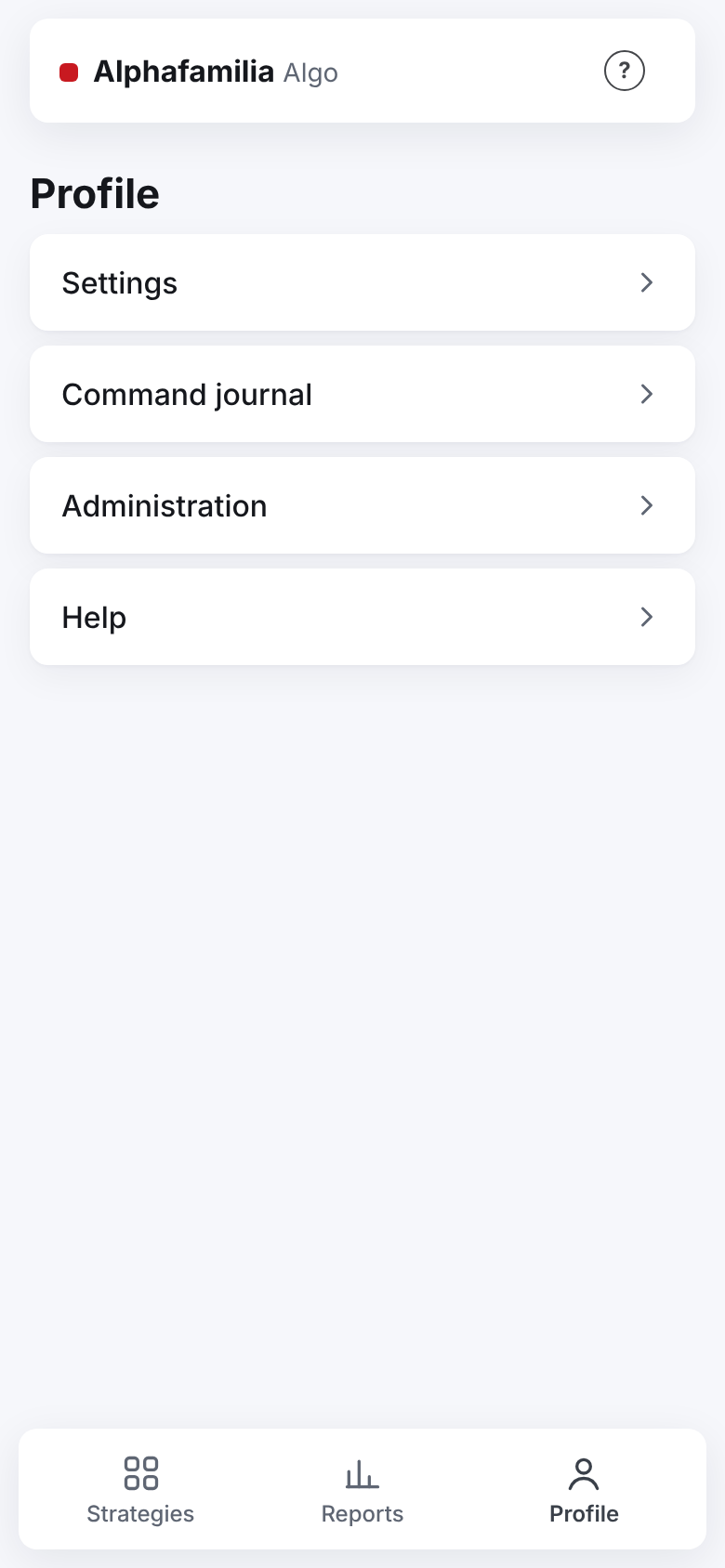
The "Profile" tab has items, each opening its own page:
- "Settings" — see below;
- "Command journal" — who gave which commands, see Managing a strategy;
- "Administration" — only for the system administrator (For the system administrator);
- "Help" — "User guide" (this help), and for the system administrator also "Administrator guide". In Telegram the help opens in the built-in browser, and the app stays where it was.
The archive of strategies is not here but on the "Strategies" tab, the link "Archive" beside "+ New strategy" (Archive).
Settings
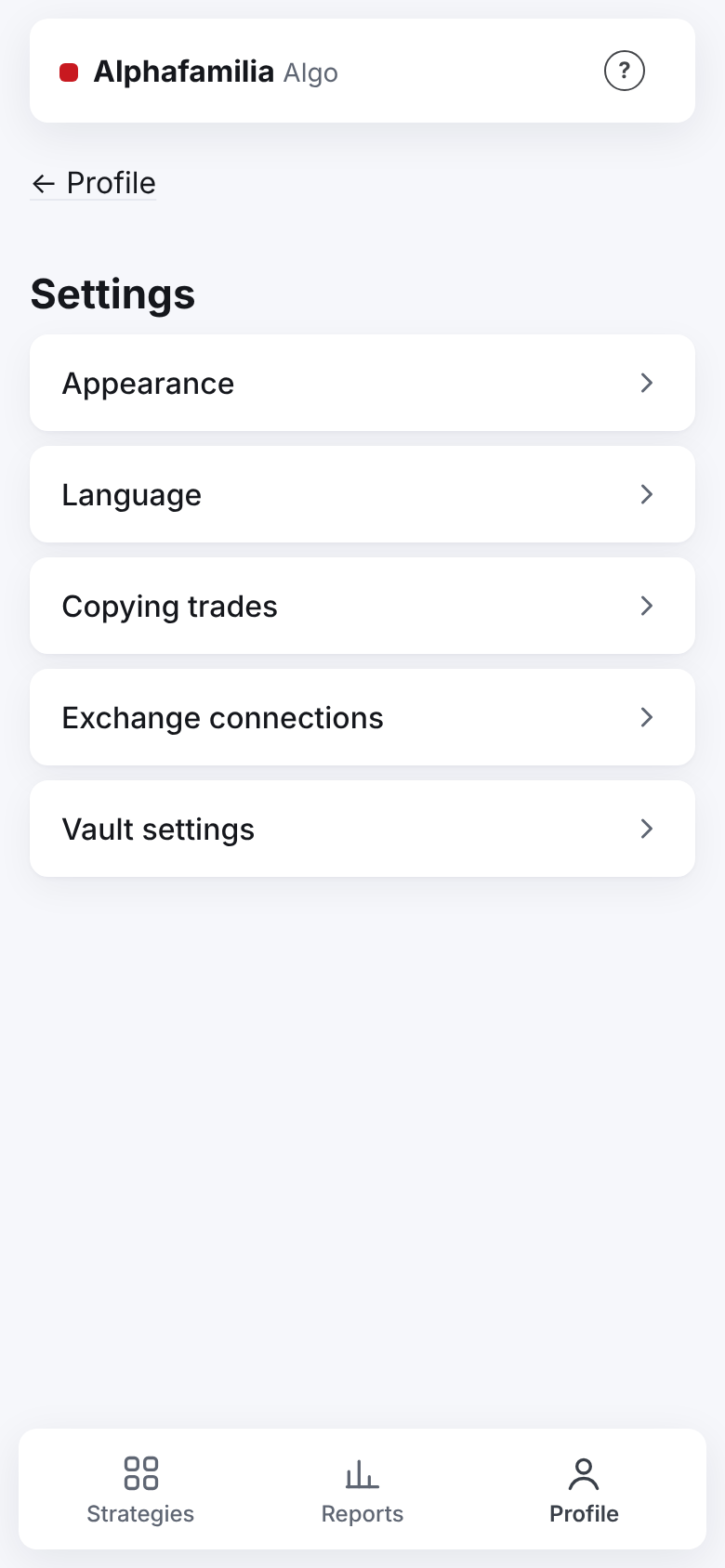
"Profile" → "Settings" — five items, each on its own page; back — "← Settings":
| Item | What is there |
|---|---|
| "Appearance" | The mode and the theme on one page (below) |
| "Language" | "Русский" or "English" — the language of the pages and the Telegram messages |
| "Copying trades" | "Show me as a trader" and the name for subscribers — Copying trades |
| "Exchange connections" | The list of connections and "+ New connection" — Connections and the vault |
| "Vault settings" | Set the vault password, open and lock the vault, change the password, "I forgot the password" — Connections and the vault |
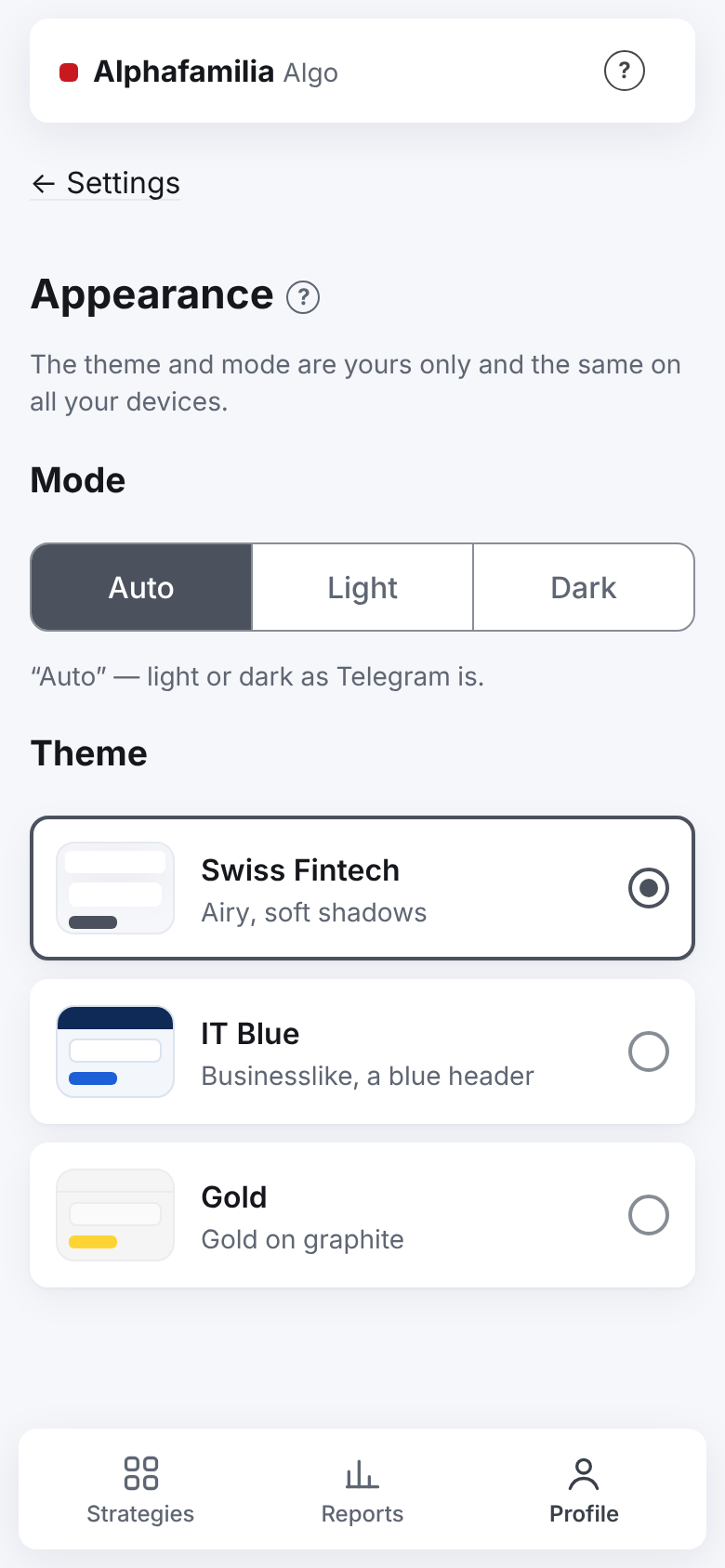
Appearance
On the "Appearance" page (with a "?" sign):
- Mode: "Auto" (light or dark as Telegram is; in a browser — as the system), "Light" or "Dark".
- Theme: "Swiss Fintech" (the default; airy, soft shadows), "IT Blue" (businesslike, a blue header) or "Gold" (gold on graphite; formerly named "Binance"). Each theme has a small sample in its colours. The themes "Terminal", "Classic" and "Yellow" are gone since 15.11: whoever had one of them chosen gets the nearest — "Swiss Fintech" or "Gold".
Your choice applies at once and is the same on all your devices: "The theme and mode are yours only and the same on all your devices.". In every theme the colours mean the same (above, Confirmations). A button that cannot be pressed yet is grey with a pale label.
Sign out
In a browser, open "Profile" and click "Sign out" at the bottom. The Telegram mini app has no sign-out button: the sign-in there is tied to your Telegram.
Several users on one server
- Each user has their own connections, keys and vault password, strategies, history, reports, command journal and Telegram messages.
- Nobody sees other people's strategies and money, not even the system administrator.
- One exchange account can be connected by only one user.
- Binance limits the requests from the server's address — one limit for everybody, and separately for spot and for futures. Each such limit is split equally between the users whose Binance strategies are running on that market now (the vault is open): one such user gets the whole limit, three get a third each. So many pairs of one user do not delay another user's strategies.
- Messages about the server (start, update, service crash) go to everyone who has strategies. Messages about a strategy go only to its owner.
Important. The keys are kept on the server encrypted, under each user's vault password; the password itself is not stored on the server. Use the service only if you trust its administrator.