I want to try without money
At the end of this path a strategy works on a test exchange. Everything is as for real: orders, the cycle, messages in Telegram. Only the money is test money — the exchange itself gives it. A test environment is a separate account of the exchange with unreal money, for trying things out; every exchange names it its own way: the "test network" at Binance, the "demo account" at Bybit, "VST" at BingX, the "sandbox" at T-Invest.
Read Getting started first: how to sign in and how the strategy works.
What you need
- Access to the app — Getting started.
- A test account at one of the exchanges and a key (token) for it. Choose one test environment:
| Exchange | Test environment | Market in the app | Where to get the key |
|---|---|---|---|
| Binance | test network, spot | “Binance spot”, environment “test network” | the site https://testnet.binance.vision (Binance's practice network; it is entered only through a free GitHub account), the button “Generate HMAC_SHA256 Key”. Its own key, not from the usual Binance account |
| Binance | test network, futures | “Binance USD-M futures”, environment “test network” | Binance's demo trading (Binance's name for its test network for futures): sign in with your account on https://demo.binance.com, futures demo → “API Management” (https://demo.binance.com/en/my/settings/api-management). Its own key, apart from the spot one; keys of the old site testnet.binancefuture.com work too |
| Binance | test network, COIN-M futures | “Binance COIN-M futures”, environment “test network” | the same site and key as for the USD-M test futures; the test BTC is on the COIN-M wallet already |
| BingX | VST demo account (futures only) | “BingX USDT-M futures”, environment “VST demo account” | the usual BingX key: API Management |
| Bybit | demo account (spot and futures) | “Bybit spot” or “Bybit USDT futures”, environment “demo” | on bybit.com switch to “Demo Trading” mode and create the key there — apart from the live one |
| T-Invest | sandbox | “T-Invest”, environment “sandbox” | a sandbox token in T-Invest's settings |
- Test money on that account: from 200 USDT (at BingX — VST, test USDT), from 0.003 BTC on the COIN-M test network or from 15 000 RUB in the sandbox. The exchange gives it in its test environment, not the app:
- on the Binance test network the test money is on the account already — no top-up needed;
- on the Bybit demo account the demo funds are requested on Bybit's site, in “Demo Trading” mode;
- a T-Invest sandbox account the app opens itself — with the button "Open a sandbox account (with a test balance of 100,000 ₽)" after the token check.
- Allowed pairs on the market. The pairs for strategies are allowed by the system administrator. If a market has none, the strategy's form says “The administrator has not allowed any pair on “…” yet — no strategy can be created here.” — write to the system administrator in Telegram — @alphafamilia: which pairs you need. The list of pairs can be extended on request.
- 15–20 minutes.
A test key needs no IP restrictions. On the connection screen the hint for the test network is shorter than for the live one: a test key needs no withdrawal and IP checks.
How to create a key at each exchange — Keys at the exchange. The exchanges' official pages:
- Binance: How to Test My Functions on Binance Testnet? and How to Create API Keys on Binance;
- BingX: API Management;
- Bybit: How to create your API key;
- T-Invest (in Russian): Sandbox — T-Invest API and Token — T-Invest API.
Tip. BingX has no test spot — only test futures. Futures are harder than spot. For a first try the Binance test network (spot) or the Bybit demo account (spot) is simpler.
Coinbase has no test environment: its sandbox does not fill orders. A strategy on Coinbase can be tried only with a small sum on the live account — Coinbase.
Steps
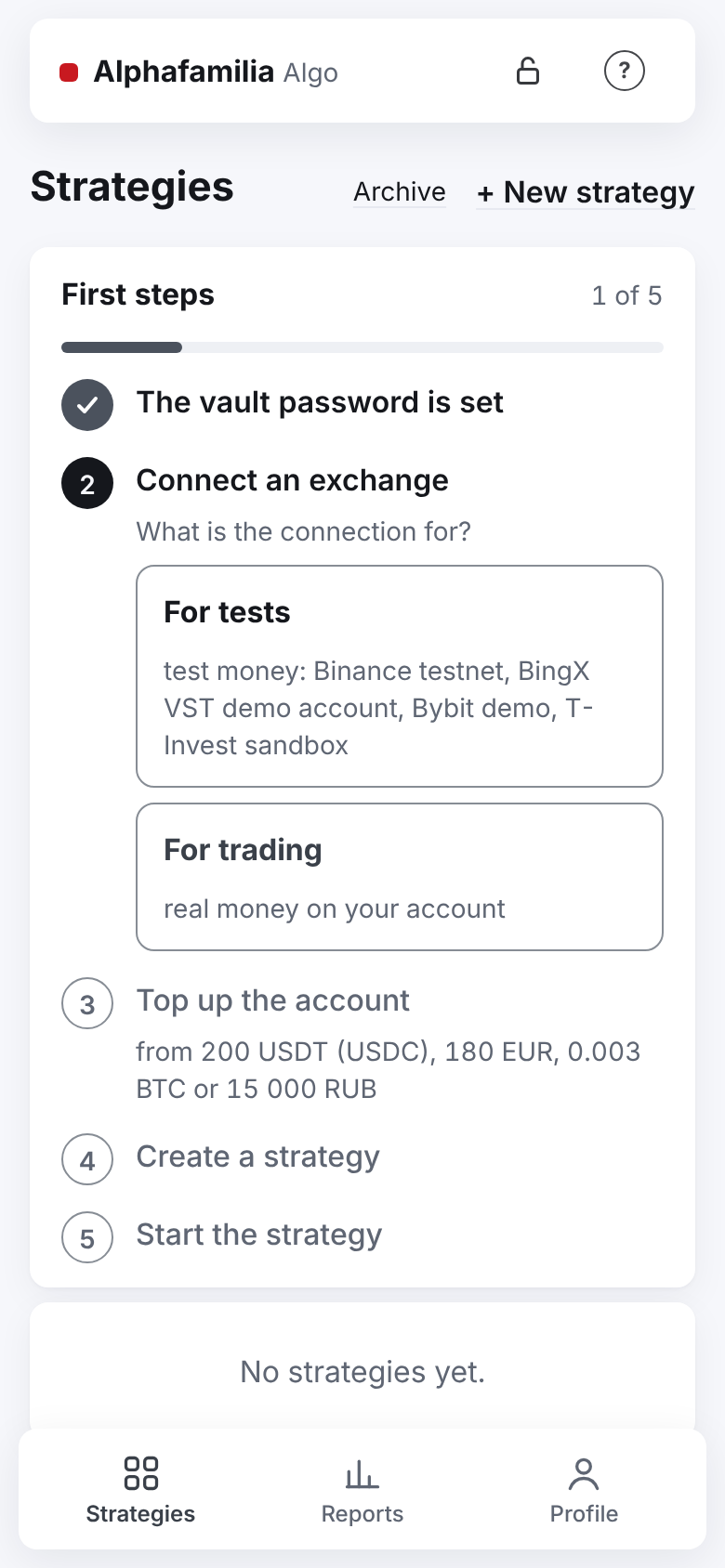
Open the app. The “Strategies” tab shows the “First steps” checklist.
The first item is “Set the vault password”. Press “Set the vault password” — the “Key vault” screen opens.
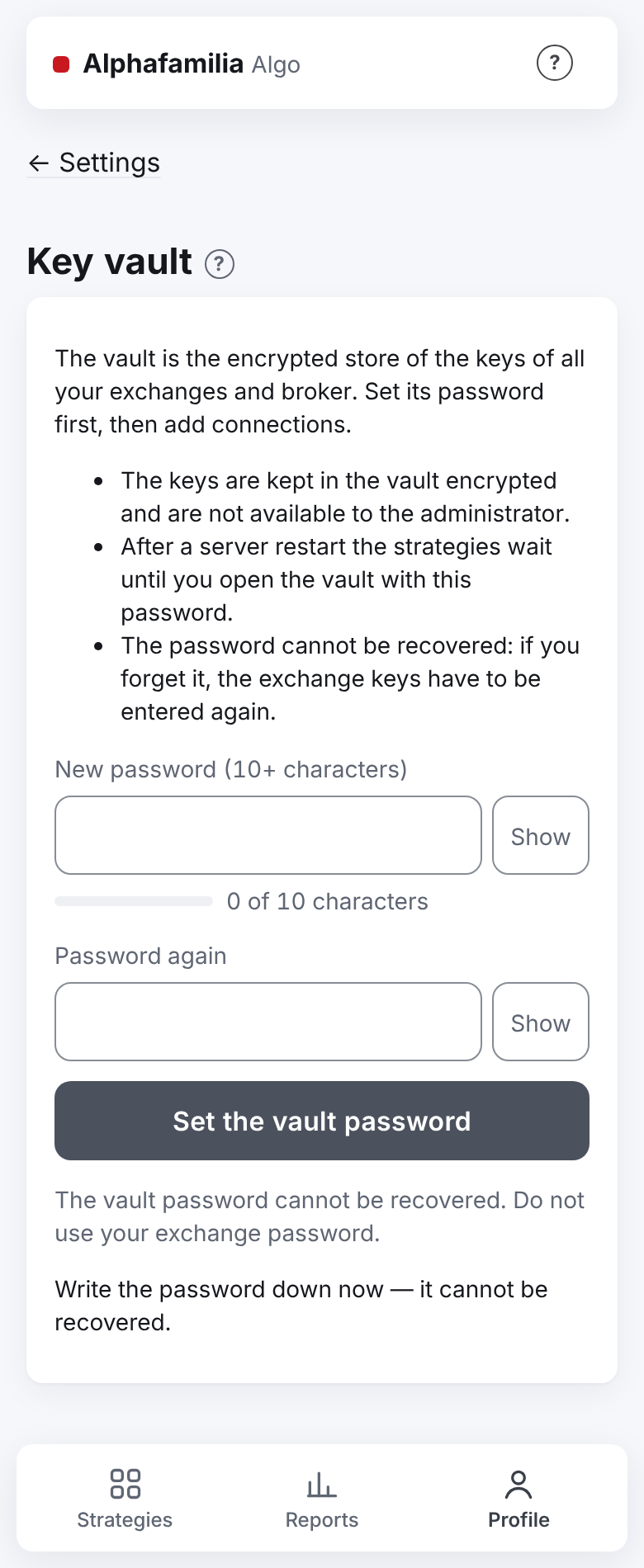
Think of a password of 10 characters or more. Type it into “New password” and into “Password again”. Press “Set the vault password”. The screen reminds you: “Write the password down now — it cannot be recovered.”
Under “The vault is ready. Next step — an exchange connection.” there are two choices, as in the checklist: “For tests” and “For trading”. Press “For tests” — the test environment is chosen by itself. The same — on the “Strategies” tab, in the “Connect an exchange” item. While there is no connection, the connection form itself asks “For tests” or “For trading” first and never opens straight on the live environment.
A new connection opens at the step “1 · Market and environment”. Choose the market from the table. Check that the test environment from the table is chosen (after “For tests” it is chosen already). A market without a test environment (Coinbase, BingX spot) says in yellow under the environment: “This market has no test environment — only real money here.” — choose another market from the table. Press “Next: the key →”.
Create a test key on the exchange's site (the table above; step “2 · Key and check” shows a memo and a link to the practice environment's site). Copy both parts of the key: API Key and Secret Key (at T-Invest — one token). The exchange shows the secret part once.
Paste the key into the “API Key” and “Secret Key” fields (at T-Invest — “T-Invest token”). Press “Check the key” (at T-Invest — “Check the token and show the accounts”).
Look at the “Check result”: ✓ — good, ✗ — the key will be refused. At T-Invest choose the sandbox account. Press “Next: name and vault password →”.
The connection's name fills in by itself, for example
binance_spot_test. Type the vault password into “Vault password — to save the key into the vault”. Press “Add”.On the “Strategies” tab the “Top up the account” item shows how much test money is free on the account and how much is needed. Not enough — top up the test account on the exchange's site (the T-Invest sandbox — through the system administrator, @alphafamilia) and press “Check again”. The sum is the recommended minimum: “You can start with less — press “+ New strategy”, the form will show whether it is enough.”
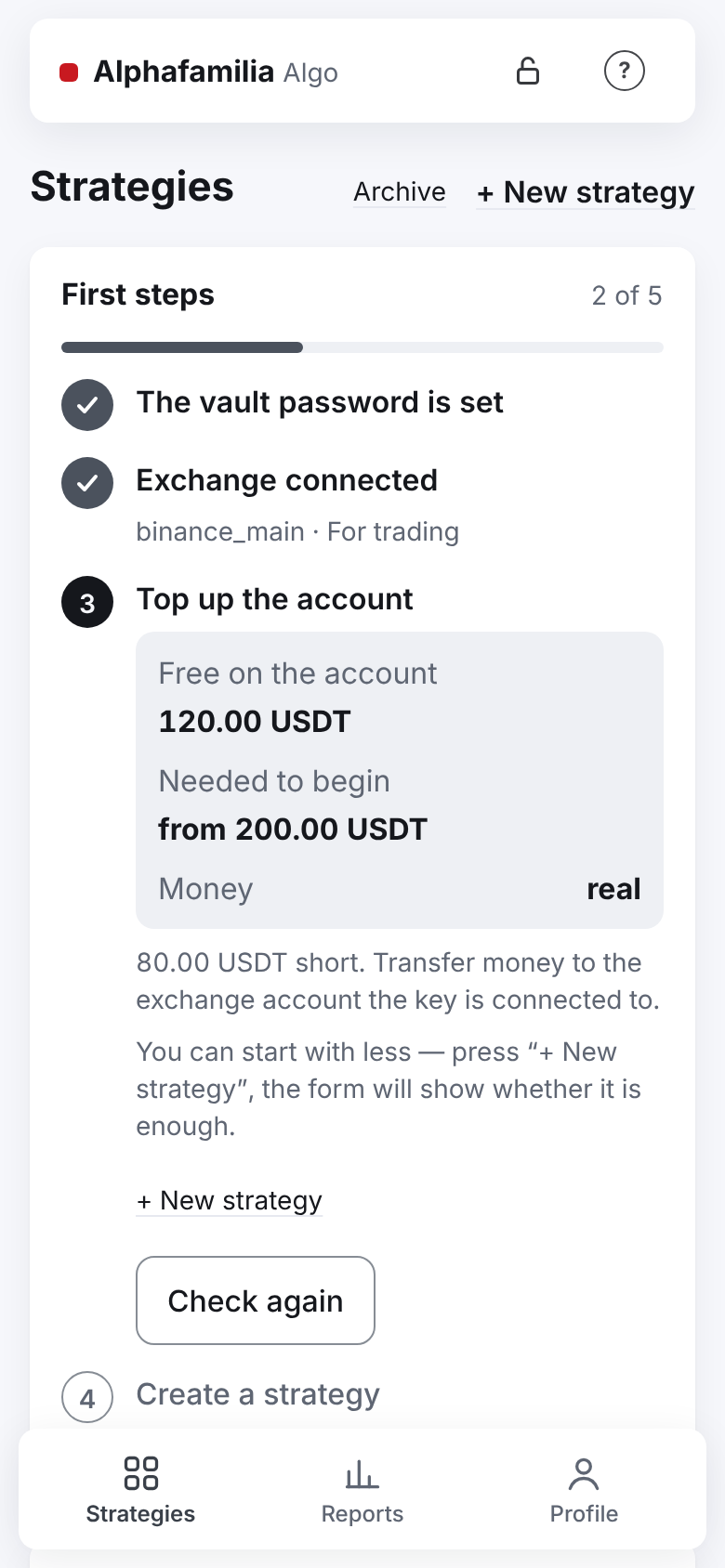
In the “Create a strategy” item press “+ New strategy”.
Choose the connection and the pair (“What we trade”, “Profit currency”). Type the “Budget” (on futures the field is called “Position size”, and under the “TP | Leverage” row — “Margin ≈ … (position size ÷ leverage)”: that much test money the strategy takes). The other fields are filled in already; the “?” sign of a field explains it. The fields in detail — Creating a strategy. No pairs and the form says “The administrator has not allowed any pair…” — see If something goes wrong.
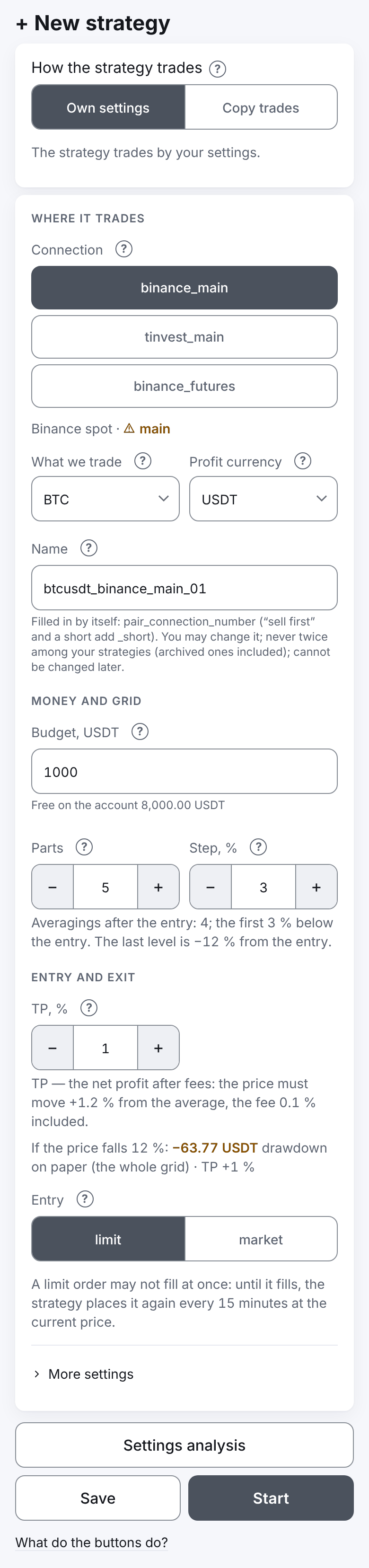
Under the connection the form says “practice”. A yellow “live — real money” with a triangle means a live connection is chosen.
Press “Start” — it saves the strategy and starts it at once. The window names the connection, the pair and the budget and says: “The connection is a practice one — not real money.” Confirm.
How to know it worked
- All five checklist items are ticked, then once — “First steps passed”.
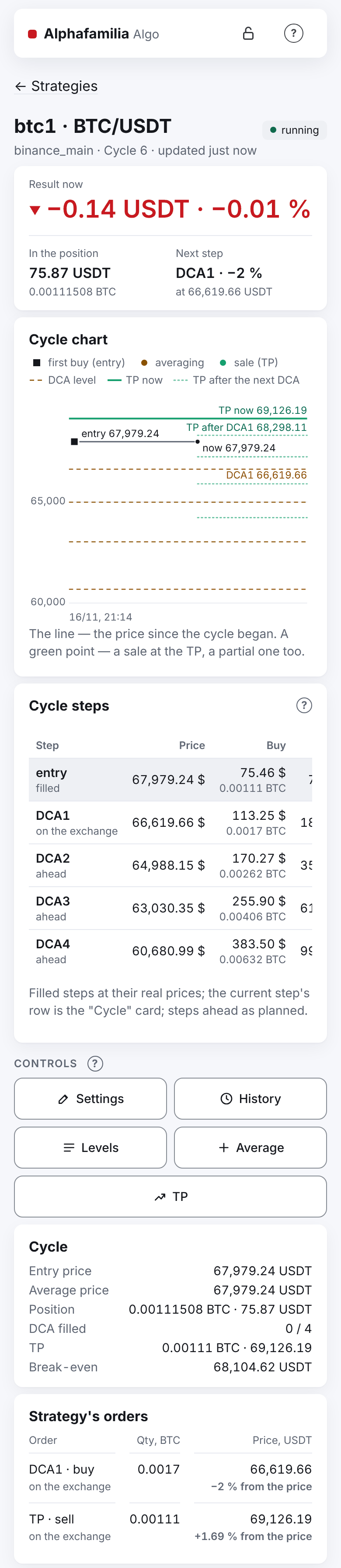
- In the list the strategy is “running”. On the strategy's screen, “Strategy's orders” shows the entry.
- Telegram brought “▶️ Strategy started”.
- When the entry fills — “🟢 Buy filled: entry”. When the TP fills — “💰 Cycle 1 closed” with the cycle's profit. How long to wait depends on how the price moves.
- Do not sell the strategy's coins by hand until the strategy is archived: the system counts them together with the other strategies of this coin, and those go into an emergency. In detail — Top up or withdraw money.
How a test environment differs from the live one
- The money is not real. The profit and the loss are not real either.
- The prices may differ from the real ones. The Binance test network has its own orders and its own prices: a cycle may go not as it would at the real exchange. The Bybit demo account trades at live prices. So a test strategy's result is not a forecast of profit.
- A shorter key check. The Binance test network does not tell the key's rights: there are no withdrawal and IP checks there, and the hint on the connection screen is shorter. At the real exchange they are required.
- No yellow warnings. A test environment's switch is not yellow, and “Add” does not ask about real money.
- Reports. The crypto rates for the reports' totals come only from a live connection.
Everything else is as for real: the same strategy form, the same buttons, the same messages.
How to move to real money
- Create a real key at the exchange: without withdrawals, with the server's address in the IP list — I want to trade crypto or I want to trade shares.
- Add a new connection: “Profile → Settings → Exchange connections” → “+ New connection”, environment “main” (at BingX, Bybit and T-Invest — “live account”). The button will have a yellow frame — “Add the live key”; confirm that it is real money.
- Create a new strategy on this connection. An existing strategy's connection is not changed.
- The test strategy, if no longer needed, stop (“Stop”) and move to the archive (“Archive”).
- Start with a small budget.
If something goes wrong
- “The key will not be taken — …”. The reason is written next to it. A frequent mistake is a key from the exchange's usual site instead of the test one (or the other way round). A Binance futures test network key does not work on spot, and the other way round. On “The exchange does not accept this key.” the app itself lists the common reasons: a test network key chosen for the live environment (or the other way round), the Secret Key not copied whole, the key deleted at the exchange, on Binance — the server's address not in the key's IP list.
- The market or environment needed is missing. Check the table: “BingX spot” is live only.
- The environment is live. So it is when there are connections already: then the live environment is the default. Switch the environment at the step “1 · Market and environment” to a test one — or go back to “Strategies” → “For tests”.
- “Top up the account” does not pass. Test money is given by the exchange — top up the test account on its site (Bybit — in “Demo Trading” mode) and press “Check again”. “The exchange has not said yet…” — wait and press again. “The system administrator has not allowed pairs (at T-Invest — securities) on this market yet…” — ask them: without pairs the account cannot be checked.
- "The token has no sandbox account". Click "Open a sandbox account (with a test balance of 100,000 ₽)" under the check — the app opens an account in the T-Invest sandbox and tops it up with 100,000 virtual roubles. If the account runs out of money — write to the system administrator in Telegram — @alphafamilia.
- “The administrator has not allowed any pair on “…” yet — no strategy can be created here.” Write to the system administrator in Telegram — @alphafamilia — which pairs you need; the list of pairs is extended on request.
- The strategy runs, but the cycle does not go. Look at the “Waiting: …” line on the strategy's screen.
The rest — Something went wrong — how to fix it.